How to use Fencing Coach Pro.
This manual walks you through all the features of the app — from the initial setup to fencer groups, the three tournament formats, tableau features and voice input, all the way to multi-device mode with clients.
Main menu
The main menu is your control center. From here you reach all the important areas of the app — from fencer management to starting new tournaments and viewing rankings.
Overview of the buttons
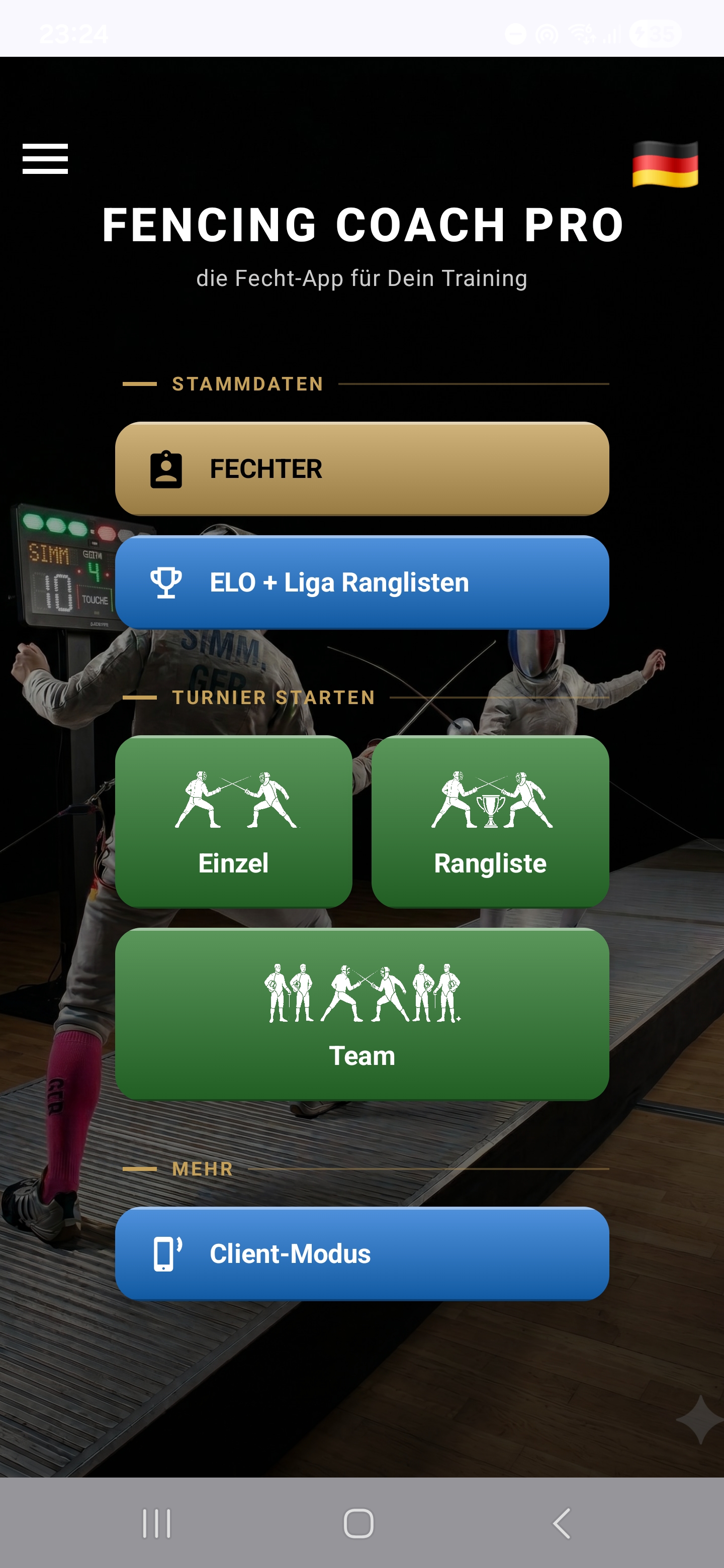
In the center you find the buttons that take you straight to the respective features:
- FENCERS — opens fencer management. Here you create fencers, organize them into groups, import lists and manage their master data. (Always active.)
- RANKINGS — shows your ELO or ranking list per group with a filter per group and a detailed history per person. (Active as soon as at least one fencer exists.)
- SINGLES TOURNAMENT — starts a classic singles tournament with pools and/or direct elimination. (Active with at least four fencers.)
- RANKING TOURNAMENT — a standalone format based on a manually maintained seeding list; ideal for club and league fixtures. (Active with at least four fencers in at least one ranking group.)
- TEAM TOURNAMENT — team competition, either 2 vs. 2 or 3 vs. 3, each with an optional substitute fencer. (Active with at least four fencers.)
- CLIENT MODE — connects this device as a client to a running master tournament on another tablet. (Always active.)
Buttons whose prerequisites are not yet met appear dimmed and don't react to taps.
Navigation & language
At the top of the main menu you find two controls:
- Menu icon (☰) top left: opens the settings (see Configuration).
- Flag top right: quick language switch — one tap takes you straight to the language picker. A total of 18 languages are available.
Resume saved tournaments
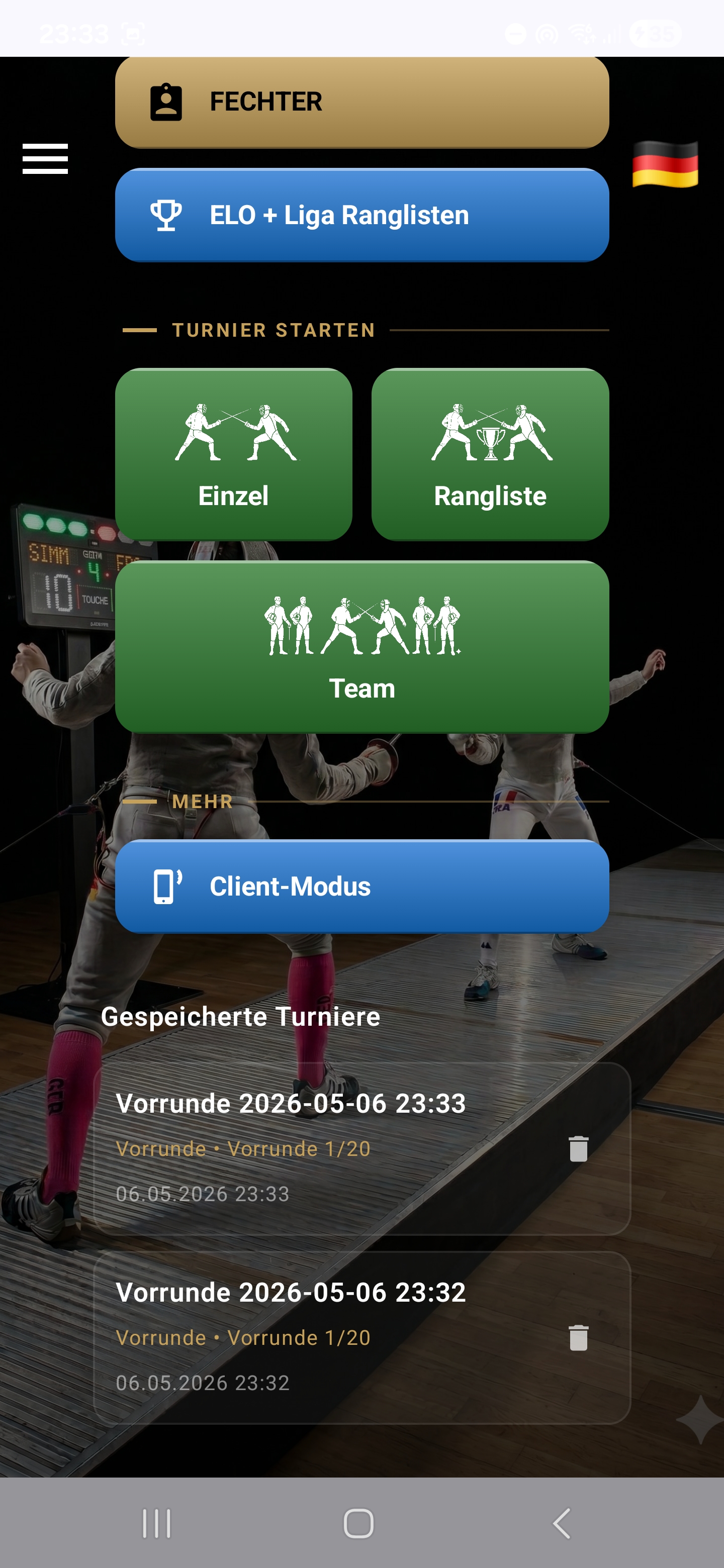
Directly below the main menu buttons, the app lists all saved tournaments — both interrupted (currently live) and already finished ones. Tap an entry to open the tournament:
- For an interrupted tournament you land exactly where you stopped — whether in the middle of a pool round, in direct elimination or in a team match.
- For a finished tournament you see the final evaluation with all tableaus, brackets and the final ranking — and you can export the PDFs again.
The current state of every tournament is saved automatically after each action — you can close the app at any time, restart your device or change the battery without losing any data.
Configuration
You reach the settings via the menu icon (☰) in the main menu. The following sections follow exactly the order of the menu items shown there.
Backup
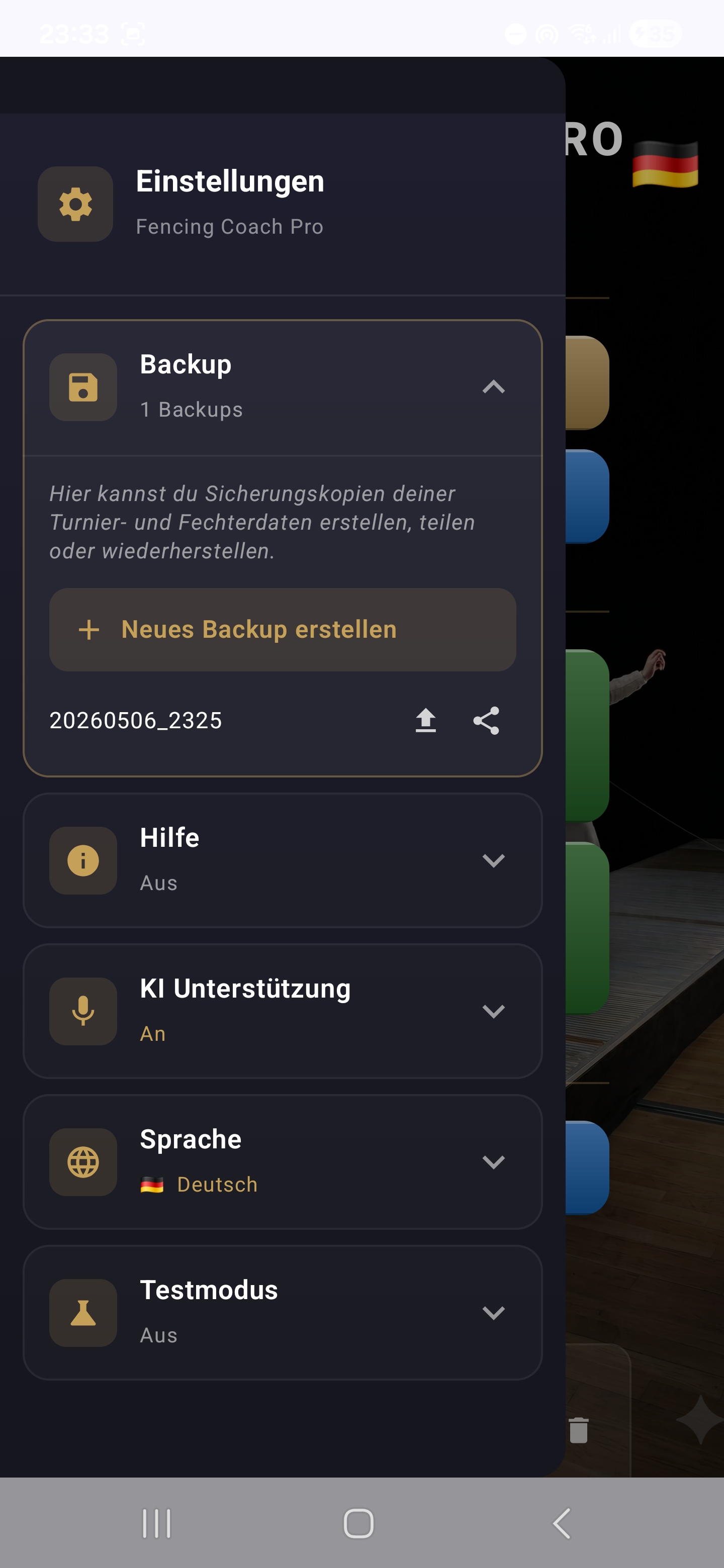
You can create a complete backup of your data as a ZIP file at any time. It contains:
- Fencer master data — first name, last name, club, birth year, gender, weapon, weapon arm and all group memberships.
- Fencer groups — all ELO and ranking groups together with their names, systems and members.
- ELO and ranking values per group, including the complete bout history.
- Saved tournaments — all finished or currently interrupted tournaments with their full state.
- All settings — app language, AI key and AI model, connection mode, zoom level, view configurations per screen (which columns are visible in fencer management, rankings and tournament selection, in what order, by which column the list is sorted), most recently chosen filter, master/client status and pending-final data.
You share the backup via e-mail, cloud, messenger or save it locally.
To restore, tap the ZIP backup in your file browser or e-mail attachment — the app intercepts the file tap and offers to import it. Alternatively, you can restore a previously created backup directly from the backup list in the settings. On restore, the existing data is fully replaced by the backup — you land in exactly the state of the backup at the time it was made, including your personal column arrangement.
Help mode
Here you turn the help mode on or off. When on, the app shows small explanation texts or tooltips on many screens. Once you've gotten used to the controls, you can switch the help mode off again — this manual remains available on the website at all times. On many screens you also find a help icon (?) at the top right of the toolbar that, when held with your finger, displays tooltips for all the other icons in the toolbar (see Help mode via long press).
AI assistance
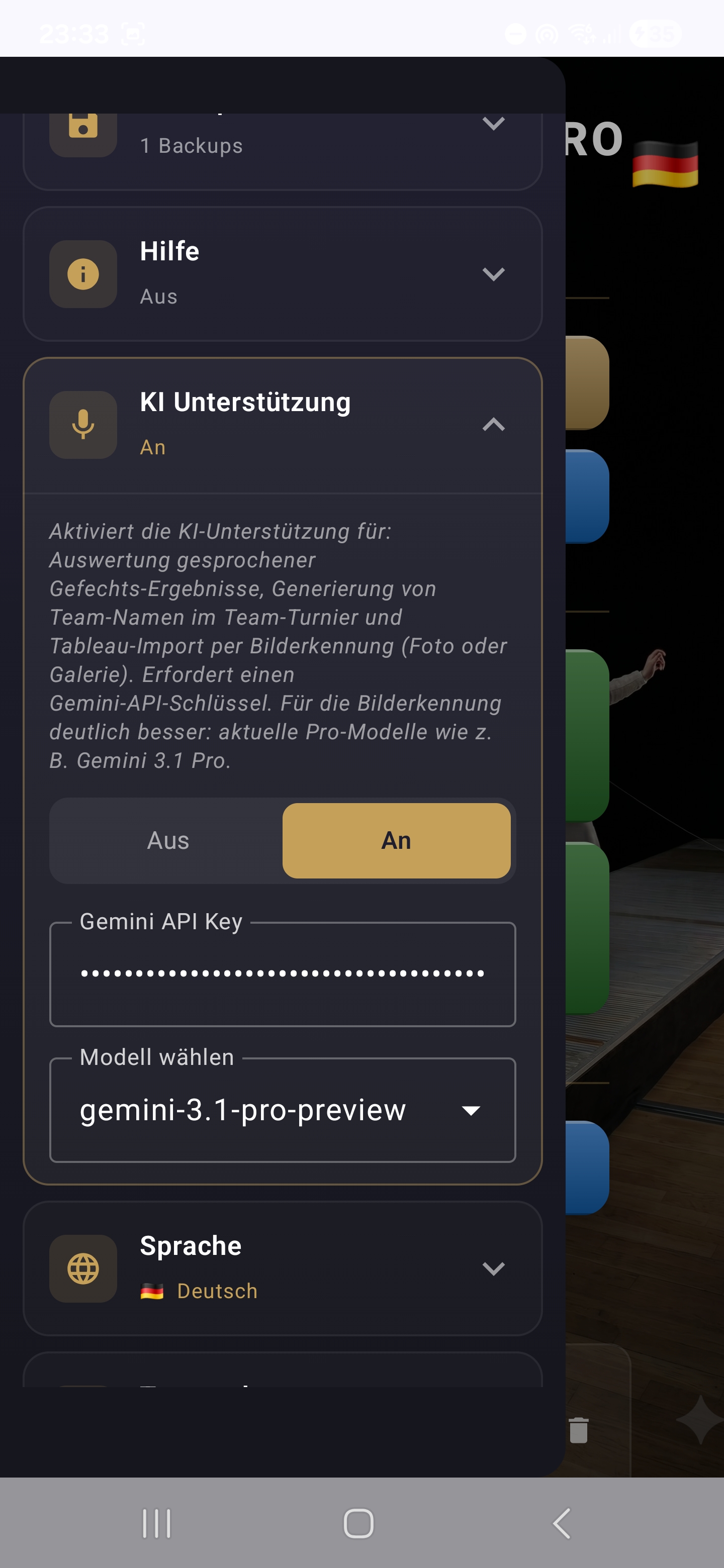
The optional AI integration with Google Gemini is completely optional. As soon as you've stored your own API key, the app uses the AI in several places:
- Voice entry of results — from a voice command like "Müller beats Schmidt five three", the AI recognizes the intended bout and the touch counts, even when names are inaccurate, abbreviated or spoken with a nickname.
- Generation of team names in a team tournament — the AI automatically suggests fitting, creative team names.
- Image-based import — you take a photo of a fencer list, a pool tableau or a seeding list (or load an existing image from the gallery). The AI automatically extracts names, clubs, birth years and, where applicable, touch counts.
Setup:
- Get a free Gemini API key at aistudio.google.com.
- Paste the key into the settings under "AI assistance".
- Pick a model (the list is loaded automatically once you've entered the key).
Model recommendation:
- Voice input & team names: smaller/faster models like
gemini-2.5-flash-liteare entirely sufficient and free to use within the Free Tier. - Image recognition (fencer lists, tableaus, seeding lists): here a current top model such as
gemini-3.1-prodelivers massively better results — especially with handwriting, tilted photos, illegible cells or multi-column layouts. If you regularly import lists or tableaus by photo, switching to the most recent Pro model is clearly worth it.
The API key is stored exclusively on your device. Data is only sent to Google when you actually use one of the AI features.
Language
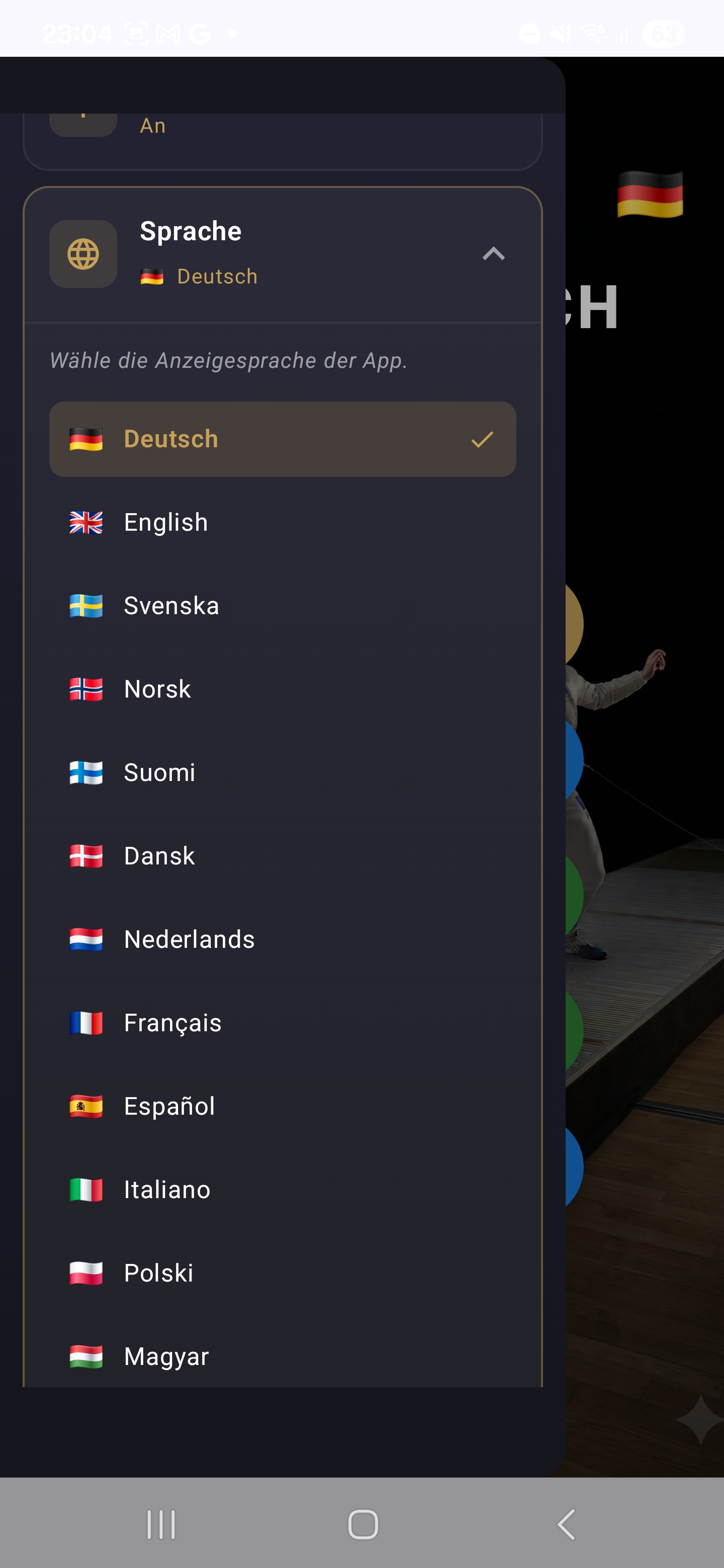
The app is available in 18 languages. You select the language in the settings menu or directly in the main menu via the flag at the top right — the choice instantly affects all texts and the speech recognition as well.
Important: The app language is independent of your phone's system language. You can use the app in German, for example, even if your phone is set to English.
Speech-recognition pack missing: If your device is offline and the appropriate speech pack isn't installed, a dialog will appear on the first voice attempt, in which you can select an alternative recognition language. The app language stays unchanged; the choice can be remembered permanently if you wish.
Test mode
In test mode you can try the app safely — every bout fenced here is not ELO-relevant and does not appear in the bout history. Ideal for trying new features or modes.
When test mode is active, additional controls also appear. In the tableau view a "Random Fill" button is available that fills all open bouts of a round with random values — practical for running through a complete tournament cycle in seconds.
Connection
Here you choose how the master device communicates with devices in Client mode:
- Wi-Fi — the master device provides a local hotspot, the clients scan the QR code and connect automatically. Recommended: longest range, fastest synchronization, no existing venue Wi-Fi required.
- Bluetooth — alternative pairing entirely without Wi-Fi. Works even when the master device can't or shouldn't open a hotspot.
Range in practice:
- Wi-Fi hotspot: typically 20–40 m in a hall, with clear line of sight (outdoors) up to 50–80 m. Usually plenty for a complete hall with multiple pistes.
- Bluetooth: typically 10–15 m, with clear line of sight up to 25 m. Practical for 2–3 pistes close together.
Rule of thumb: If the master device can provide a hotspot, Wi-Fi is always the first choice. Bluetooth is useful mainly when the hotspot isn't available.
Note: The Wi-Fi mode always requires the app's own hotspot — connecting via an existing venue Wi-Fi is not currently implemented.
About & legal
Here you find version information about the installed app as well as links to the imprint and privacy policy. For questions or problems, you can reach the developer contact directly from here.
Fencer management
Concept & overview
Before you start your first tournament, you create your fencers once. They stay permanently in the app — together with their master data, ELO ratings per group and full bout history. The list in fencer management is your central, global collection of all fencers you have ever fenced with.
In the list you see all fencers with the columns you've selected — e.g. first name, last name, club, gender, weapon, birth year and ELO. Tapping a column header sorts the list; via the column-configuration icon you decide which columns are shown at all and in what order (see Configure columns).
Fencer groups
Fencers can be sorted into freely configurable groups — for example training groups, classes, clubs or leagues. A group has a name and a type:
- ELO groups — every fencer has an individual, group-specific ELO rating. The ELO evolves through training tournaments and competitions within this group and is independent of other groups.
- Ranking groups — manually maintained seeding lists with a fixed rank position per fencer (place 1, 2, 3 …). Ideal for club rankings, league-style standings, club championships.
Via the group icon in the toolbar of fencer management, you open the group management, in which you can create, rename or delete groups. A fencer can be a member of several groups at the same time — and have an individual value in every ELO group. When you create or edit a fencer, you choose the memberships via a checkbox list.
Add a fencer
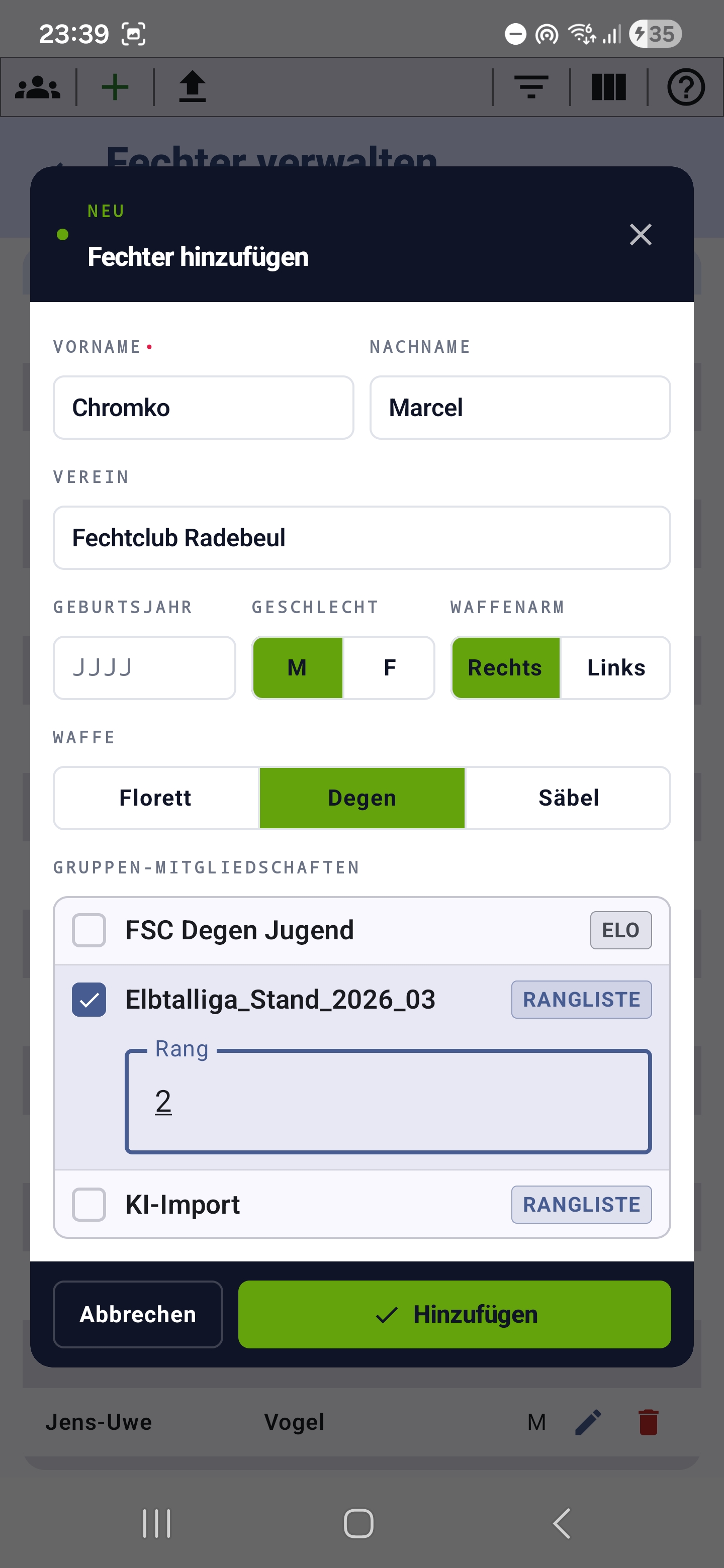
Via the green plus icon in the toolbar you open the creation dialog. It is built in tactical style and shows the label "NEW" in the header along with the title "Add fencer", and the buttons "Cancel" and "Save" in the footer.
Fields:
- First name — required.
- Last name — optional. First and last name are used in the list, in tableaus and in the PDF export.
- Club — free text or pickable from previously used clubs.
- Birth year — four-digit, with validation (1925 up to current year − 1). Invalid values are highlighted in red.
- Gender — segmented switch (M / F).
- Weapon arm — segmented switch (right-handed / left-handed, multiple selection possible).
- Weapon — segmented switch (foil / épée / sabre, multiple selection possible).
- Training groups — checkbox list of all groups with type badge (ELO or Ranking). When a ranking group is selected, an additional input field appears for the rank within that ranking.
- Starting ELO — only shown when the fencer is assigned to at least one ELO group. Default is 500, allowed range 490–510.
The dialog warns you visibly when a fencer with the same first and last name already exists — you can then decide whether to really create a new one or edit the existing one.
Edit & delete
Tap a fencer in the list to open the edit dialog — it has the same structure as the creation dialog. With the trash icon you delete a fencer permanently after a confirmation prompt. Already saved bouts remain in the opponents' history.
Configure columns & sorting
The list can be configured individually per filter context (All / ELO group / Ranking group). Via the columns icon in the toolbar you open a dialog with all available columns:
- Show / hide via checkbox.
- Reorder via drag-and-drop using the drag handle on the right.
- Ranking groups: ELO and Bouts are automatically hidden because they don't have a meaning there.
Tap a column header in the list to sort by that column — a small arrow indicates the direction. Tapping again reverses the sort direction. Column choice, order and sorting are saved per context and restored on the next visit.
Import: CSV, image, camera
Via the import icon in the toolbar you start the import wizard. Three sources are available:
- CSV file from the file system (first/last name, rank, club, gender, birth year are detected automatically; column mapping adjustable).
- Image from the gallery — the AI reads fencer names, clubs and, where applicable, birth years from the image.
- Camera — directly take a photo with the device camera and have it analyzed.
In the subsequent mapping dialog you specify which CSV column contains which field. You also choose the target:
- New group with the entered name and type (ELO or Ranking).
- Existing group from the list, optionally with "Replace existing membership".
After confirmation, the app matches every entry against your global fencer list: hits with identical first/last names are merged (master data is merged; in case of conflicts a merge dialog appears). New entries are freshly created. Membership in the target group is set in one go.
Help icons in the toolbar
At the far right of the toolbar in fencer management (as well as in the tableau, ranking and history) you find a help icon (?). Hold it down — above every other toolbar icon a small number appears, and below them an explanation list is shown in which each number is described briefly. Releasing hides everything again.
ELO & ranking lists
Concept & multi-ELO
In this app, a ranking always belongs to a specific group. If a fencer is, for example, in both the ELO group "Active A" and the ranking group "Club Championship 2026", they have an ELO value in the ELO group and a fixed seed position in the ranking group — both are displayed and maintained separately.
ELO calculation
The ELO rating follows the classic scheme. Simplified:
- Before the bout, the expected win probability of both fencers is calculated (based on the ELO difference).
- After the bout, points are shifted depending on the actual result — winning against a stronger opponent yields more than winning against a weaker one.
- The size of the win (touch difference) also factors into the calculation.
Bouts fenced in test mode don't change any ELO values and don't appear in the history.
Ranking screen
Via the main-menu button RANKINGS you reach the ranking screen. The toolbar at the top has three icons:
- Filter — switches between the available groups. ELO and ranking groups appear with the appropriate suffix ("(ELO)" / "(Ranking)").
- Columns — show/hide columns and reorder them via drag-and-drop (ELO/Bouts are automatically hidden for ranking groups).
- Help — tooltip overlay for the other icons.
Below it the list shows the fencers sorted by rank (in ELO groups by ELO value descending; in ranking groups by seed position ascending). When you tap a column header, you sort by that column; the rank stays independent — the rank column always shows the natural order of the group.
Fencer history
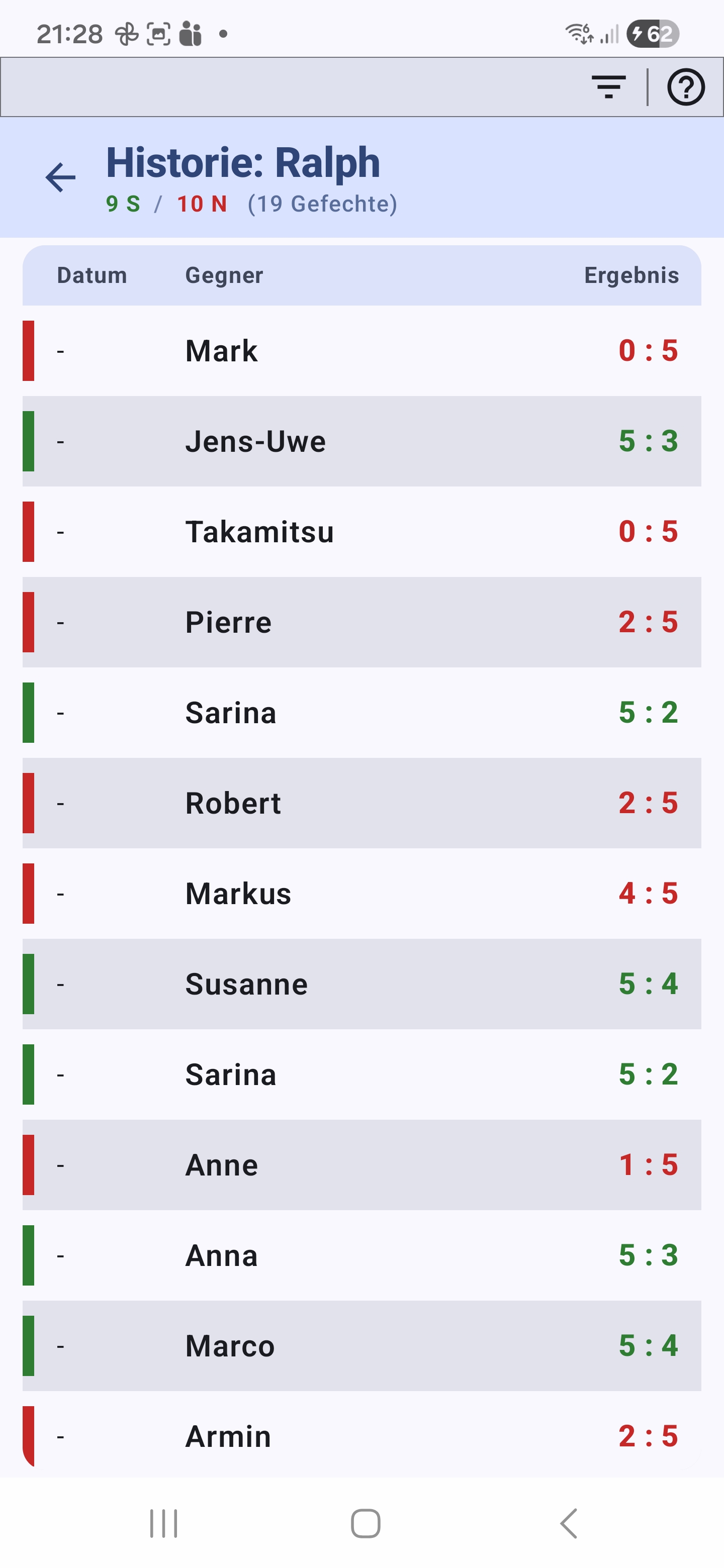
When you tap a fencer in the ranking, their history opens: every bout fenced so far with date, opponent and result. The toolbar at the top shows the filter icon — a tap opens a multi-select of opponents, so that at a glance you see the head-to-head balance between two fencers: How often has A won against B? How close were the bouts?
Singles tournament
The classic singles format: pool round first, followed by direct elimination (knockout bracket) — both optional and freely combinable.
Select participants
The first screen shows your fencers — filtered by the chosen ELO group. Tap the people present today. In the toolbar at the top you find:
- Plus — create a new fencer directly or pick one from the global pool who isn't yet in this group.
- Import — CSV/image/camera import directly into the active group (see Import).
- Filter — switch between ELO groups.
- Columns — view configuration of the list.
- Help — tooltips for the other icons.
The selection has to include at least four fencers for the tournament to be sensibly startable.
Round setup
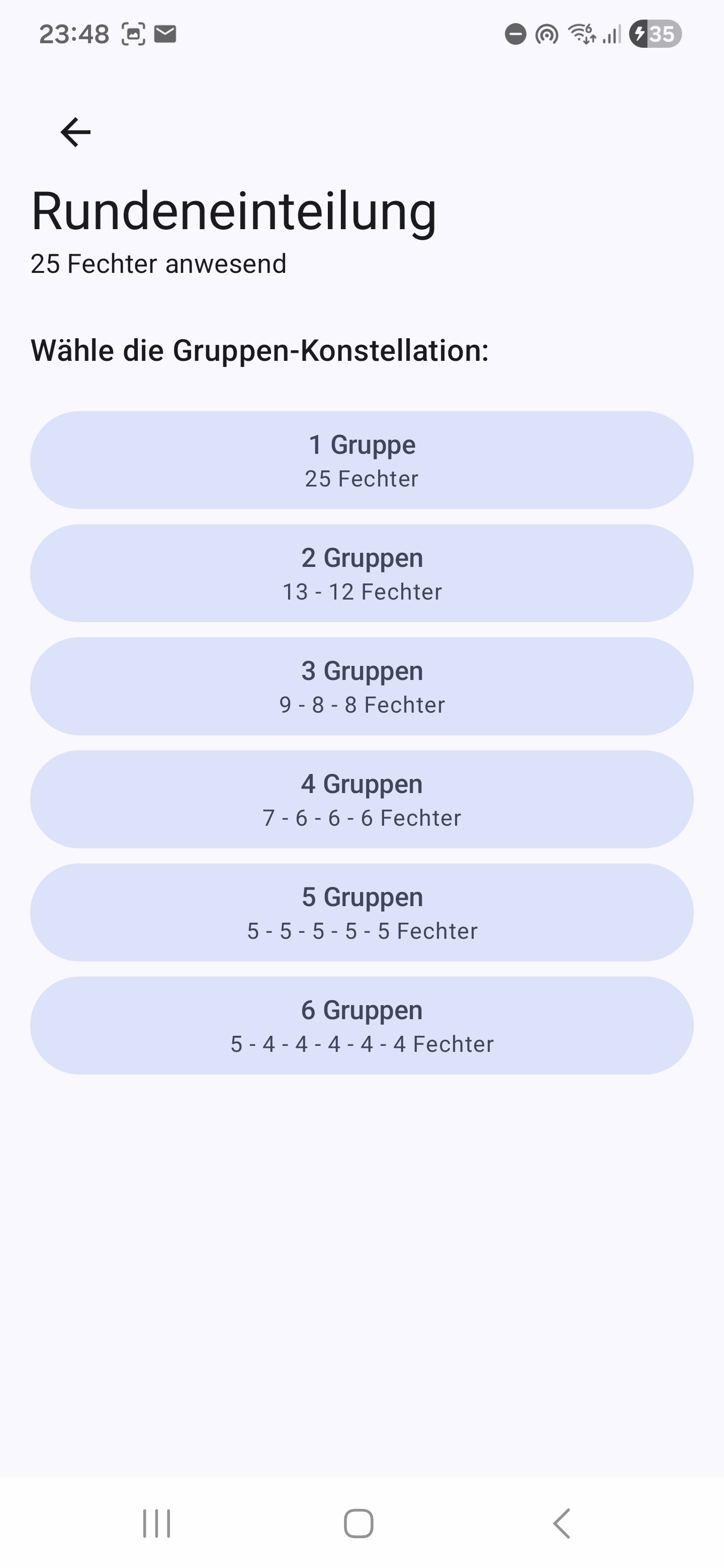
Based on the number of selected participants, the app shows a list of suggestions for the pool layout of the pool round. Each suggestion clearly states how many pools with how many fencers each would be formed — e.g. "1× 8 fencers", "2× 4 fencers" or "2× 5 fencers + 1× 4 fencers" with 14 present.
Tap a suggestion to create the pools. The distribution happens automatically using the serpentine principle: the strongest fencers are spread across the pools so that ELO strength is as balanced as possible and not all top fencers end up in the same pool.
With only one pool, you jump straight into the pool tableau (see Pool round) — there is no separate pool assignment there because there's nothing to distribute. With multiple pools the app moves to the next screen, the Pool assignment, where you can manually adjust the automatic distribution.
Pool assignment
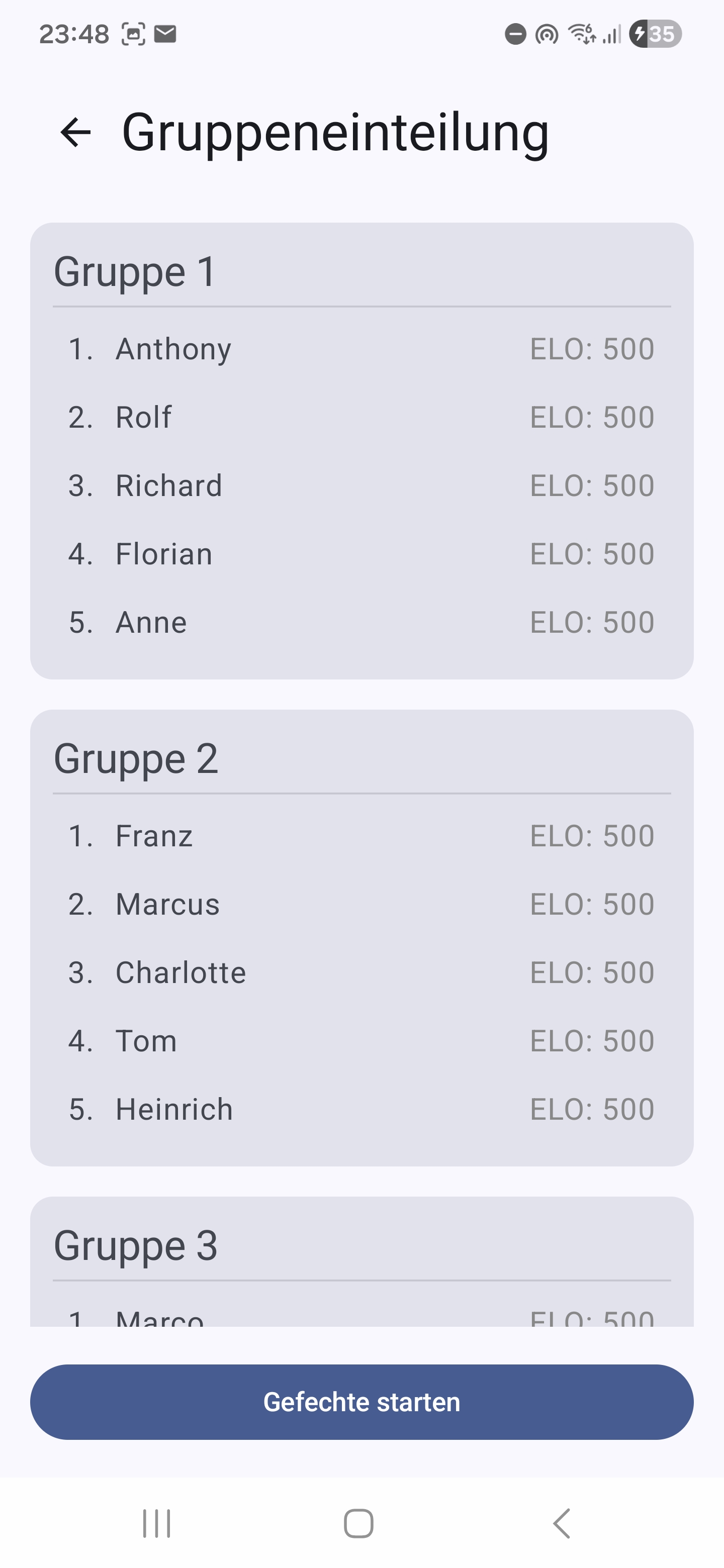
The "Pool assignment" screen shows all pools with their automatically allocated fencers. Usually the assignment fits right away — but you can adjust it manually at any time, for example to remove a clubmate from a pool, or because a fencer absolutely needs to fence in a specific pool.
Swap or move fencers between pools:
- Long-press a fencer until they are visually highlighted (the device vibrates briefly as confirmation).
- You now have two options:
- Swap: Tap a fencer in another pool — the two immediately exchange their pool assignments.
- Move: Tap the plus icon of another pool — the marked fencer moves into that pool, without anyone moving back.
- The marking is removed automatically after the swap or move. Long-pressing another fencer selects a new one without your having to "cancel" first.
Move only works when the target pool still has space. Pools at maximum size have no plus icon — there you can only swap, not add.
Once the distribution fits, you start the round with the button at the bottom of the screen. From here on all pools are live and you can enter results (see Pool round).
Pool round (pool tableau)
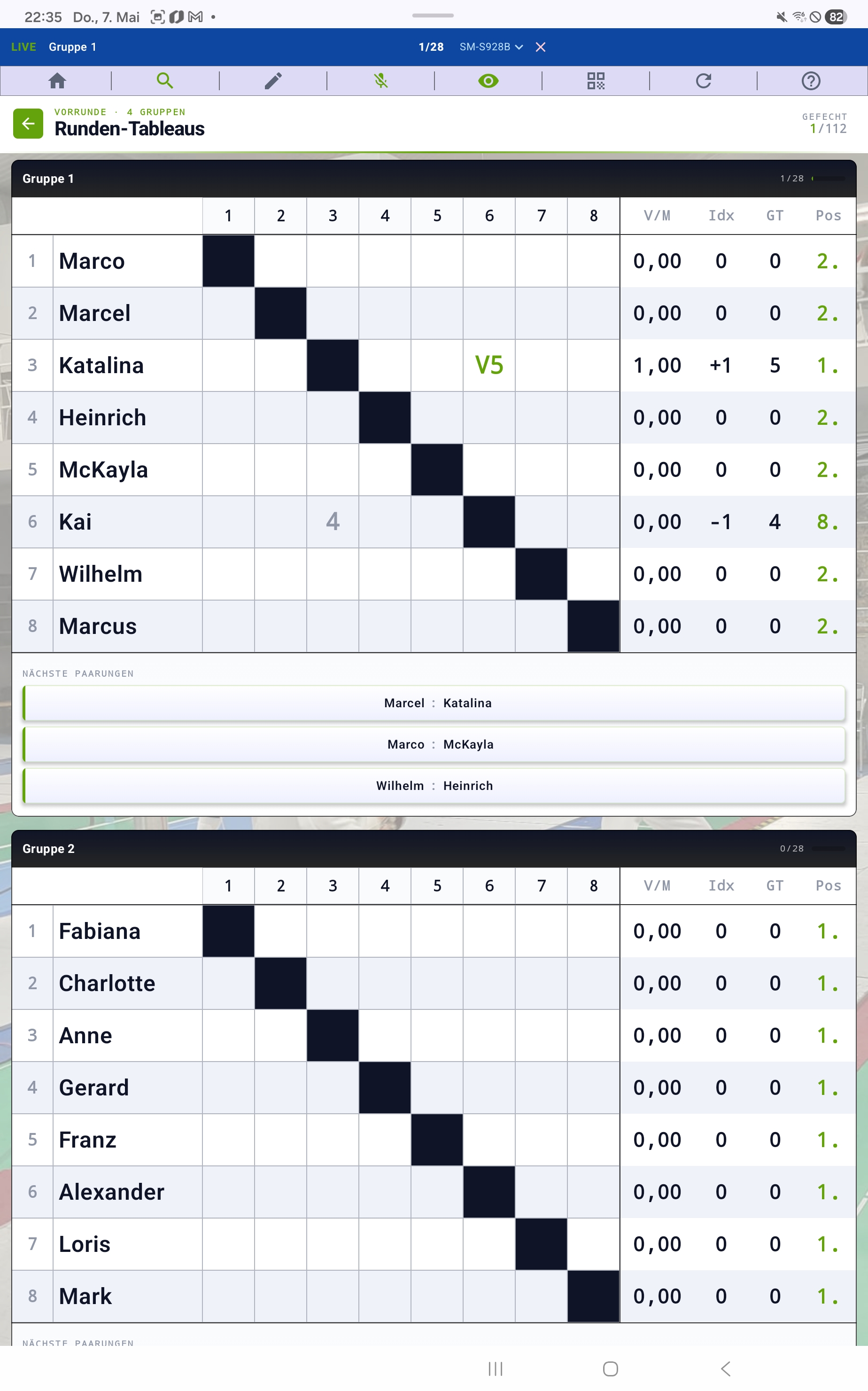
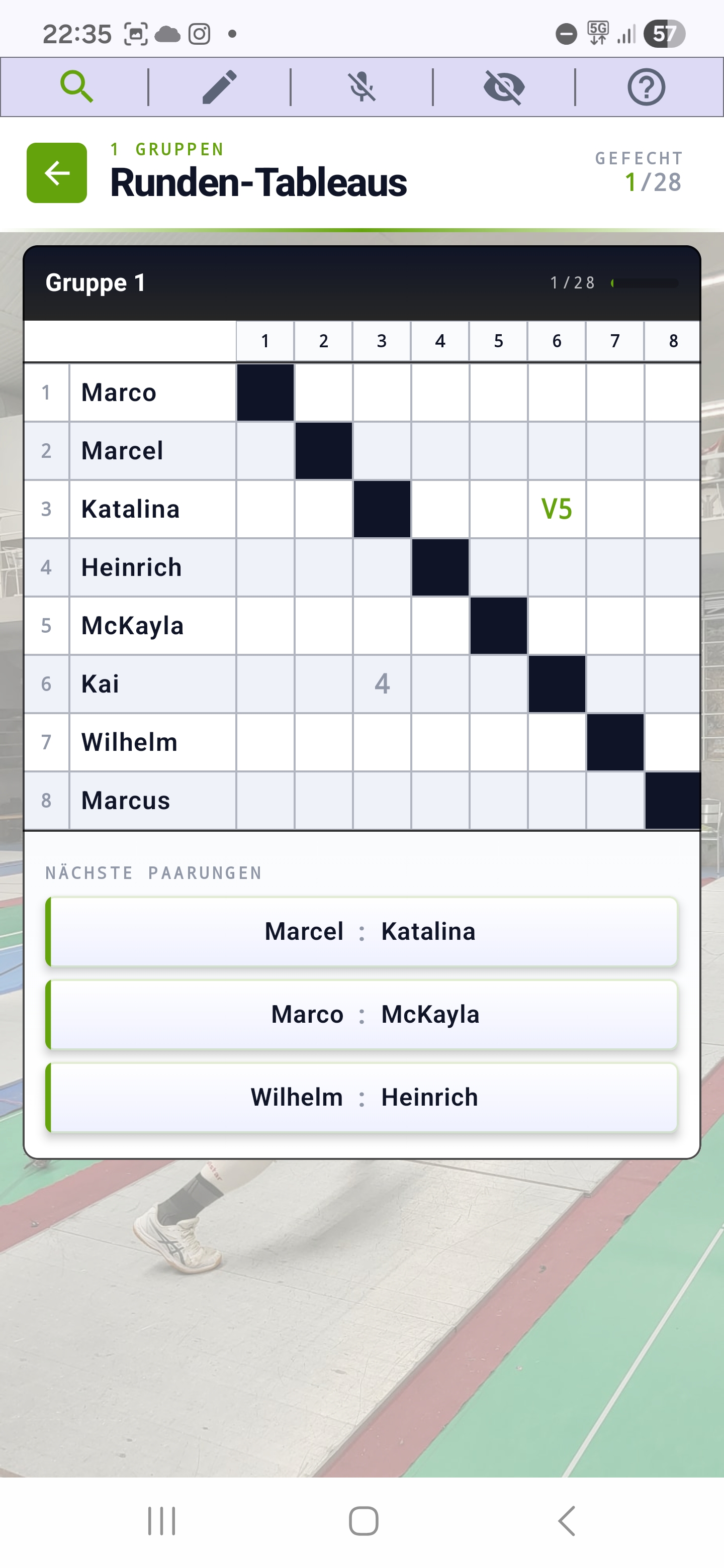
In the three modes with a pool round, the app distributes the participants into pools automatically by seed position (ELO-based). Pool size and count are suggested; you can adjust them manually. In the pool tableau you see all bouts of a round — tap a cell to enter a result.
The app calculates win rate, touch difference and pool ranking automatically in the background. For each group, an estimated end time is also shown. All tableau features (toolbar, help mode, auto-zoom, ETA, edit mode with add/remove and forfeit, wheel picker) are described in detail in the Tableau features section — they apply identically to all pool tableaus (pool round, final round, "single big pool", ranking pools and team round tableaus).
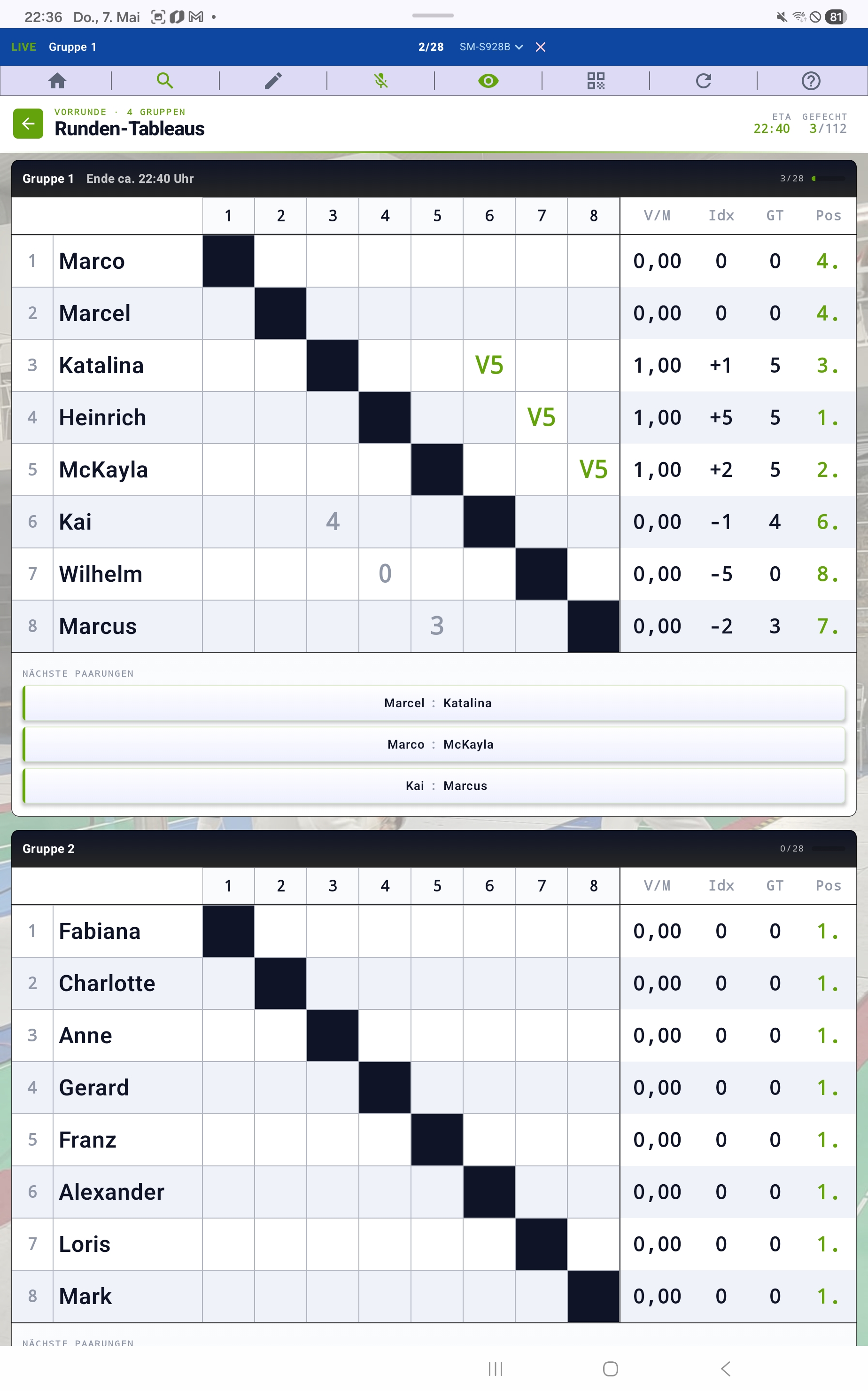
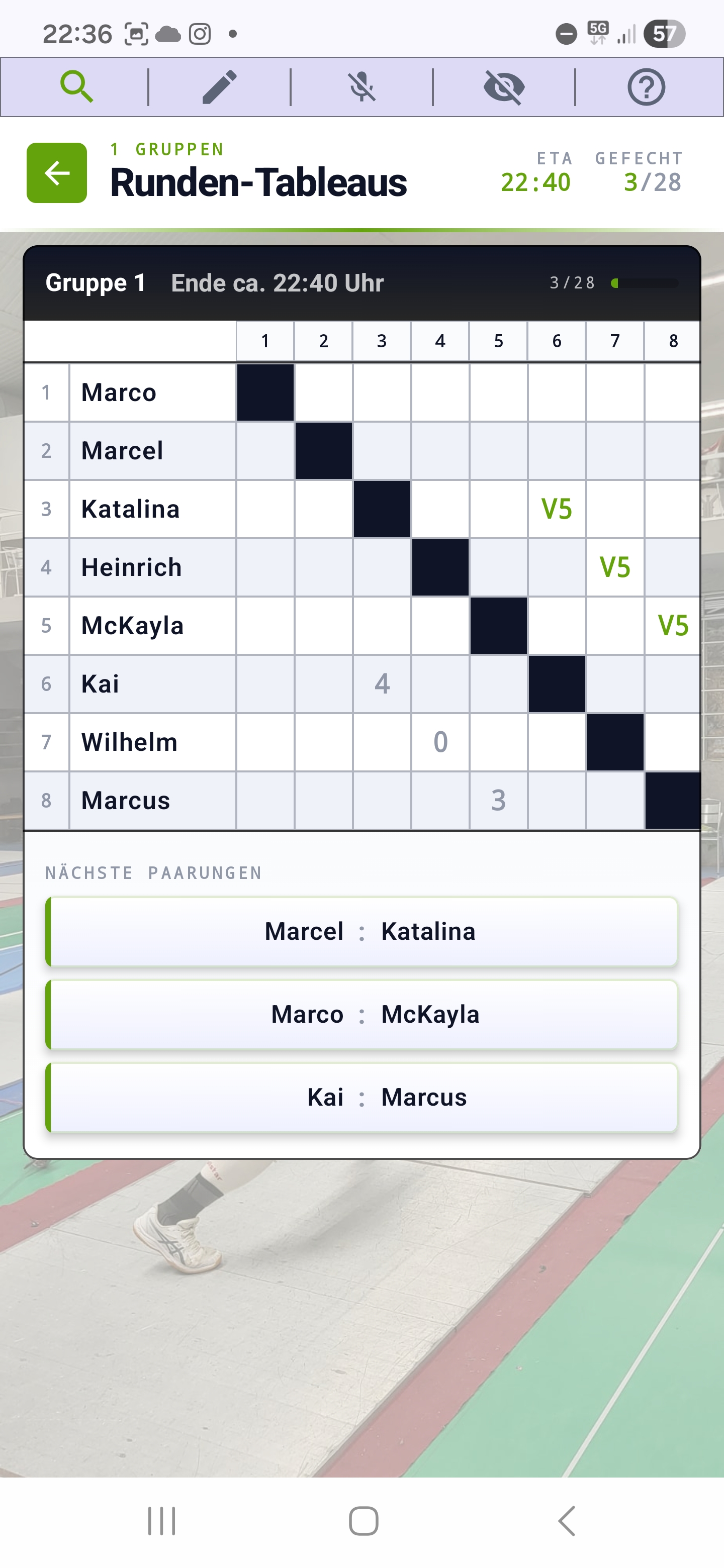
As soon as a group has been delegated to a client, the blue LIVE banner appears at the very top of the master, showing the name of the running group, the current bout counter (e.g. 2/28) and the device ID of the client. Tap the banner to expand it and see the full bout list of the delegated group in chronological order — the running bout is marked with an arrow, finished matchups show their touch counts. That way you keep an overview across multiple pistes without switching devices.
Pool ranking
Once all pool bouts of the pool round are finished, the next screen shows the cross-pool ranking: win rate, touch difference and touches scored determine the order. This seeding list is also the basis for the final phase — whether final round or direct elimination.
Final round
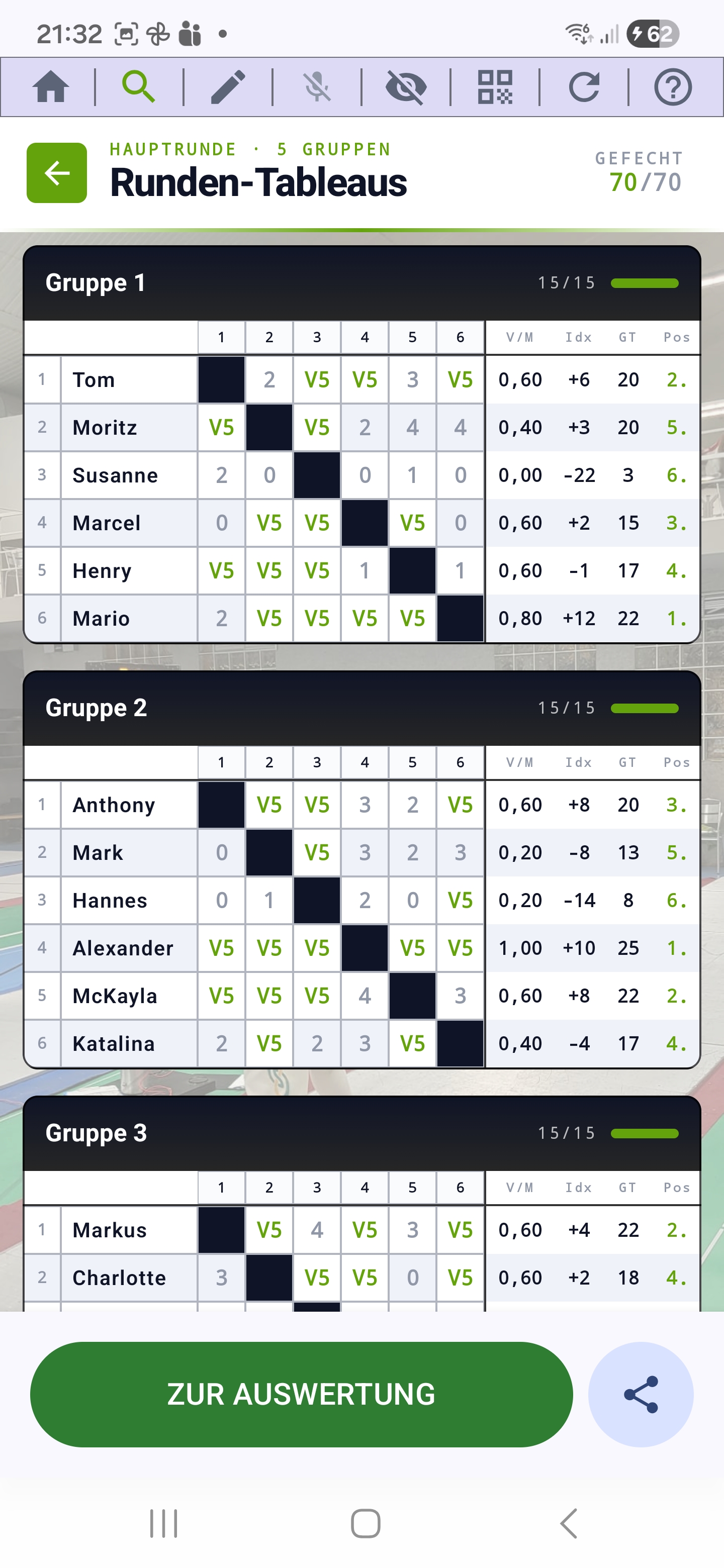
In the "Pool round → Final round" mode, the pool round serves as the seeding list: based on their placement, all fencers are split across an A-, B-, C-final and so on — the A-final contains the top placements of the seeding list, the B-final the next group, and so on. In each final group, a regular pool is fenced: everyone against everyone. The ranking per group is determined by the results of these final pools (with the pool results of the pool round as tie-breaker); the order of the groups determines the final placement in the overall standings. Operation is identical to the pool round (tableau, ETA, voice input …).
Direct elimination
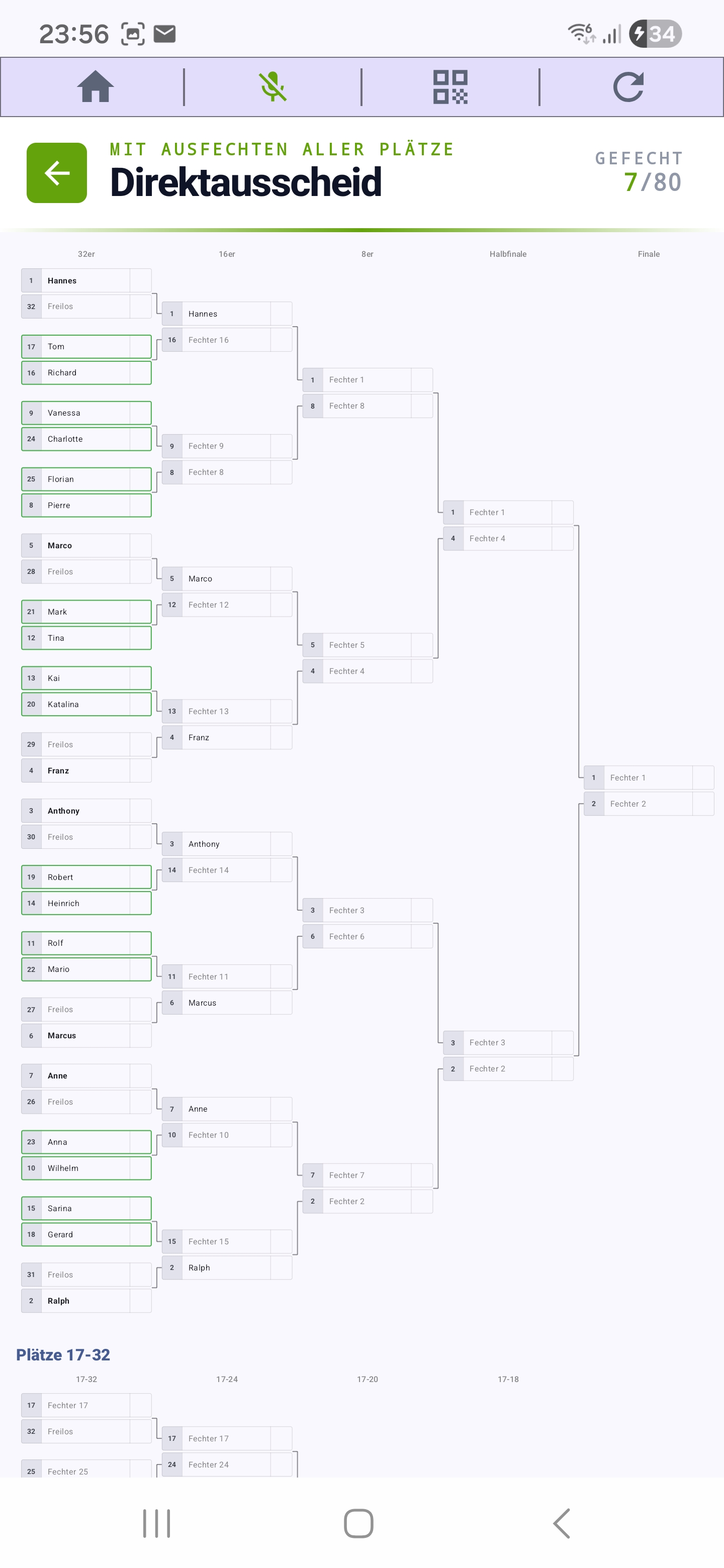
In the two DE modes, the knockout bracket is built based on the pool seeding. For every bout you tap the slot to enter the touch counts. Winners advance to the next round automatically.
- Classic — only the winners' line is fenced out. Losers drop out and their final placement results from the round in which they were eliminated.
- With placement matches for all places — losers fence out the lower places (3, 4, 5 …) in an additional losers' bracket. That way everyone gets a hard, fenced-out final position.
- Byes are distributed automatically when the participant count isn't a power of two.
- Use the zoom function to switch between overview (all rounds) and detail view.
Note on multi-device mode: In the direct elimination of a singles tournament there is no client delegation — the QR icon is hidden here. DE matches run sequentially and are entered directly on the master or reported via voice input. Pool groups (in the pool round) and team matches (in the team tournament), on the other hand, can be delegated to clients at any time.
Single big pool
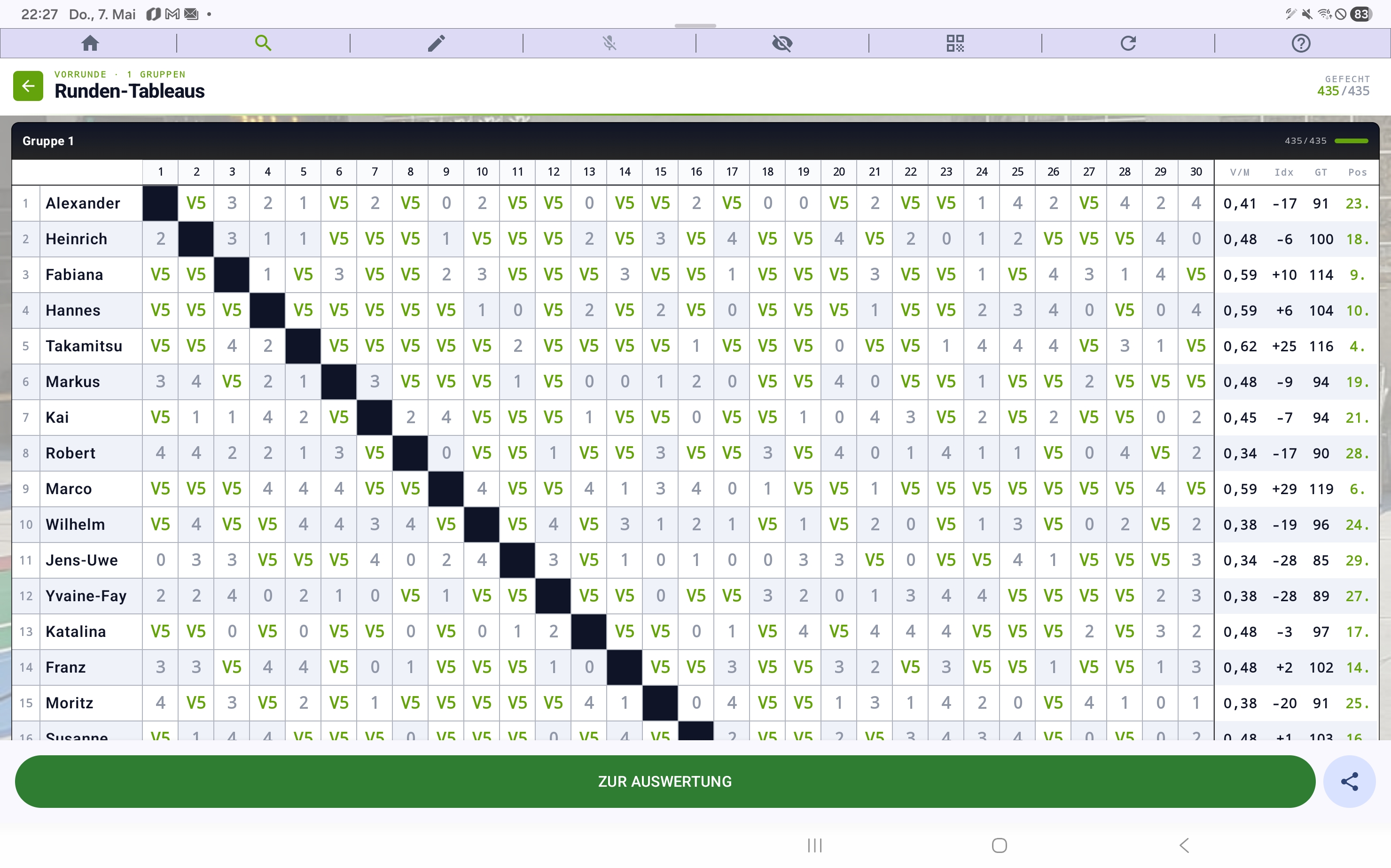
In the "Single big pool" mode, the pool round is skipped. All attendees end up in a single pool and fence everyone against everyone. Once all bouts are finished, the final ranking results directly from this pool — no additional final or DE phase.
Especially useful for marathon competitions, where every fencer should get as much fencing time as possible against everyone else — but of course just as fitting for small fields, where splitting into pools and adding a final phase would not be worth the overhead.
This mode is most useful for smaller fields (around 6–10 attendees), where splitting into pools would unnecessarily fragment fencing time. All tableau features (edit mode, add/remove, forfeit, ETA …) work identically to the pool rounds of the other modes.
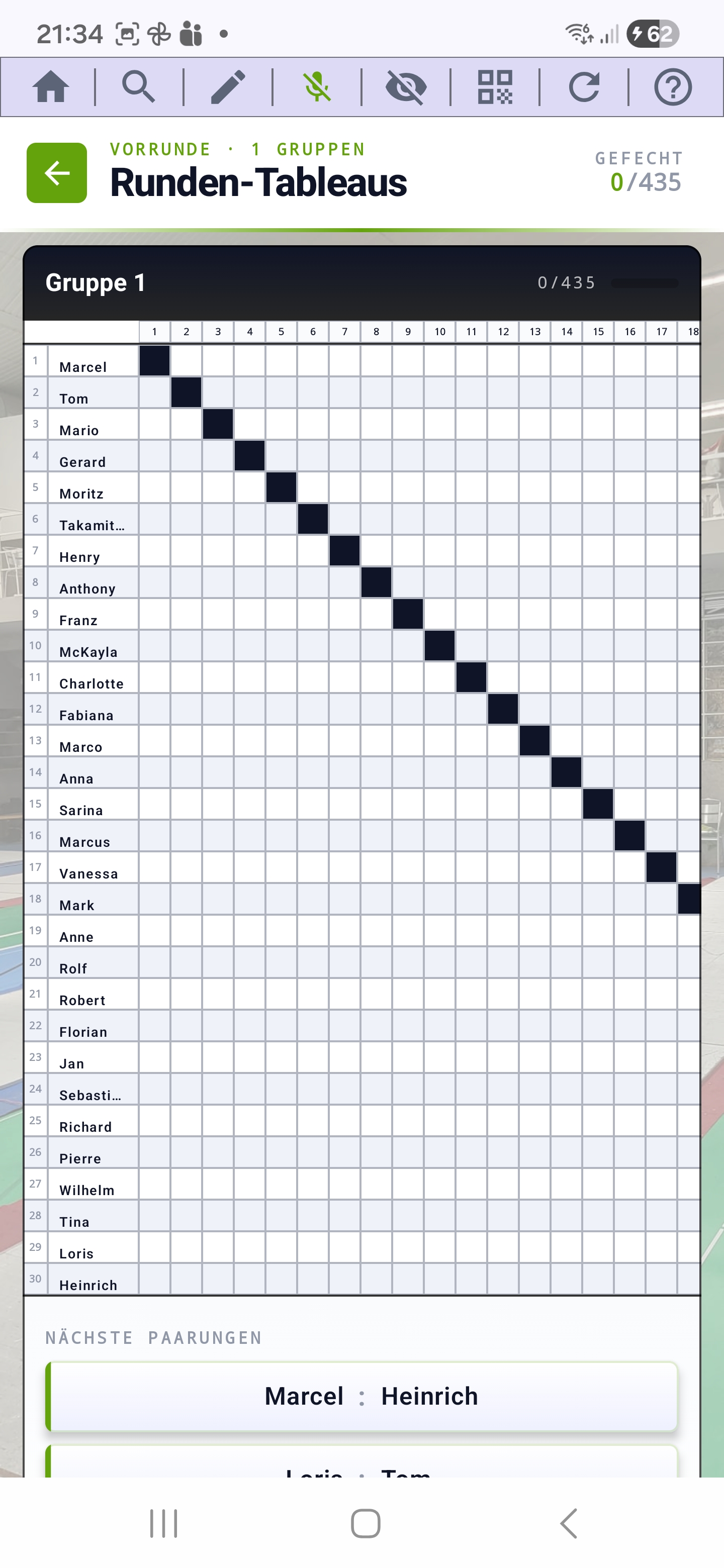
A single big pool with many fencers can also be run on a smartphone: the tableau is zoomable and pannable — pinch with two fingers to zoom in or out freely, drag with one finger to pan the matrix in any direction. Even with 30 participants every cell stays reachable without having to switch layout.
Final result & PDF
After completion, the final-result screen shows the final ranking with all placements. The ELO values of all participants are automatically updated here based on the results (outside test mode).
Here you can export the following PDFs — either "Save" or "Share" (e-mail, print, WhatsApp, Drive …): pool tableaus with final standings, final-round or DE bracket with all results, final ranking, or a complete tournament summary.
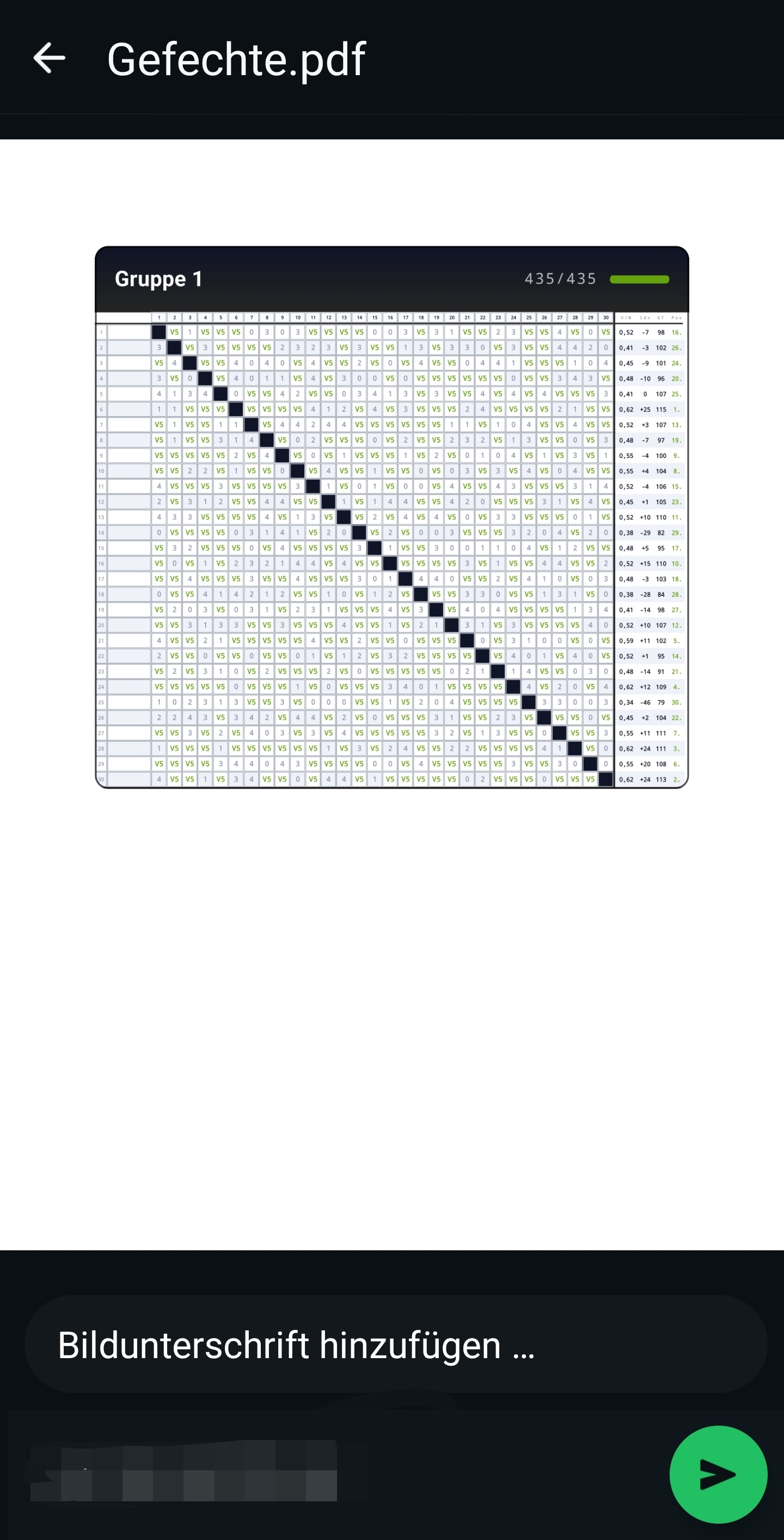
The exported PDF contains, per pool, a compact matrix view with all bouts, touch counts and the statistics columns (win rate, indicator, touches given, final position) — ready to be posted on a notice board or sent to coaches and fencers.
Ranking tournament
Concept
The ranking tournament is a standalone format based on a fixed seeding list per group. Unlike ELO, where the value lives off the results, here every fencer has a fixed position (1, 2, 3 …) — ideal for club rankings, club championships or league competition days.
Choose or create a ranking
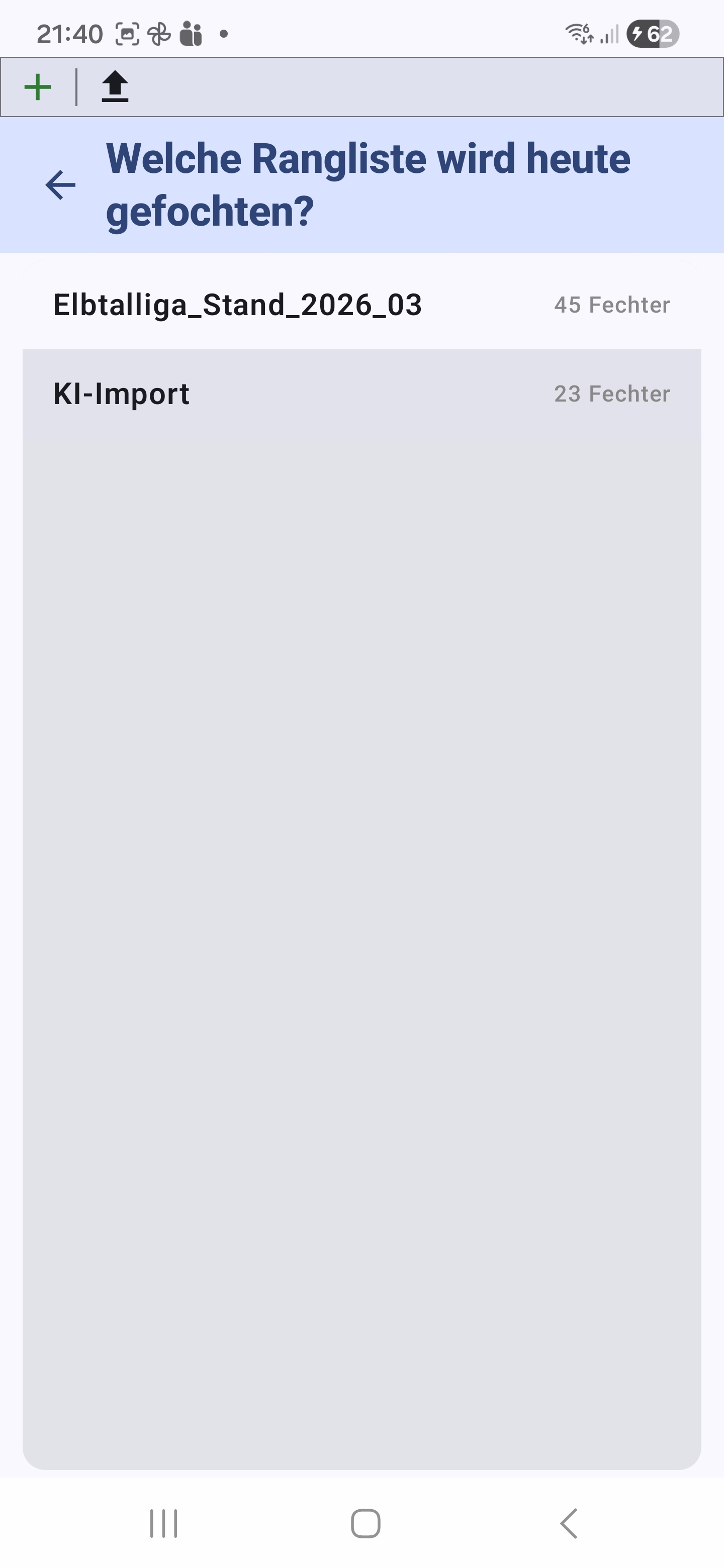
At the start the app asks which ranking will be fenced today. You can:
- Tap an existing ranking from the list.
- Via the plus icon, create a new, empty ranking — you only enter the name; the members follow in the next step.
- Via the import icon, use a CSV, image or camera photo directly — the wizard either creates a new ranking or fills an existing one.
Present fencers
Once you have chosen a (freshly created or existing) ranking, you arrive at the attendance selection. Here you mark which members of this ranking are fencing today. Via the toolbar you can also add fencers (plus) or import directly (import) — the import goes directly into the active ranking, without having to enter the group name again.
Ranking format & mode
Ranking tournaments build on the existing seed positions of the fencers. You choose whether the attendees fence in a single pool round (everyone vs. everyone) or whether multiple pools followed by direct elimination are fenced. The seeding stays determined by the ranking position, so the original order serves as the seeding criterion in the pool layout.
Evaluation
At the end of the ranking tournament the app writes the new ranking positions back into the corresponding ranking group. Whoever gains places moves up in the ranking — the order is automatically renumbered. The old ranking position remains visible in the history, so you can follow the development across several ranking tournaments.
Team tournament
In the team competition, teams face each other. The app supports two formats: 2 vs. 2 and 3 vs. 3, each with an optional substitute fencer.
Select participants
Just like for the singles tournament, you start by selecting today's present fencers from your list. Via the toolbar you can create a new fencer directly or import a whole list — in case someone shows up spontaneously who isn't in the group yet.
Team distribution
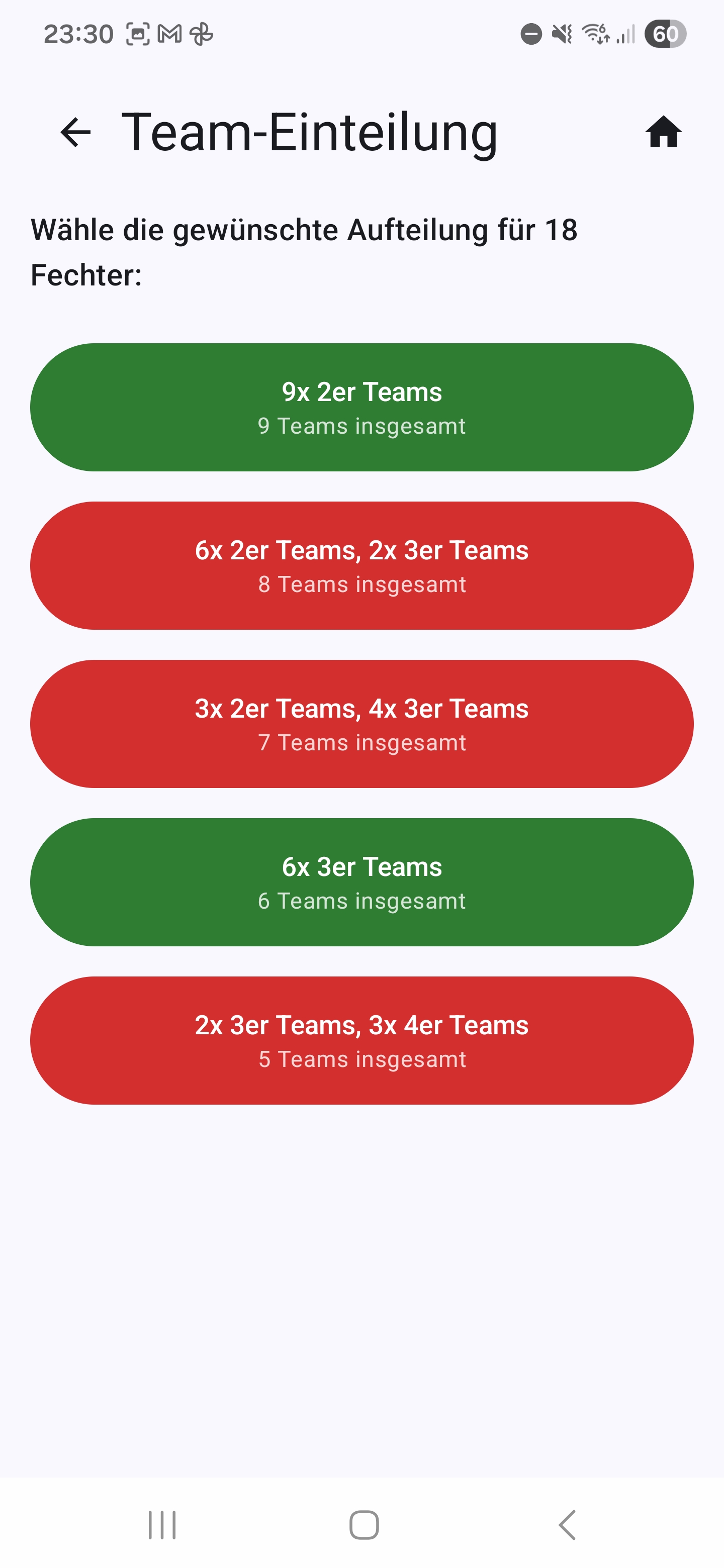
Based on the number of selected fencers, the app shows various suggestions for the team composition — e.g. "9× 2-fencer teams" or "6× 2-fencer + 2× 3-fencer teams". Each suggestion is marked with a traffic-light color:
- 🟢 Green — all teams get by without a substitute fencer.
- 🟡 Yellow — exactly one team has a substitute fencer.
- 🔴 Red — two or more teams have a substitute fencer.
Team composition

After picking a layout you arrive at the team-composition screen. The distribution is balanced based on the ELO values — but you can adjust it manually:
- Swap: Long-press a fencer until they are highlighted. Then tap a fencer in another team — the two swap teams.
- Move: Long-press the fencer the same way and then tap the plus icon of another team.
You assign the team names yourself — or via an AI suggestion in one go. The AI button appears at the top right of the title bar as soon as AI assistance is enabled.
Group assignment
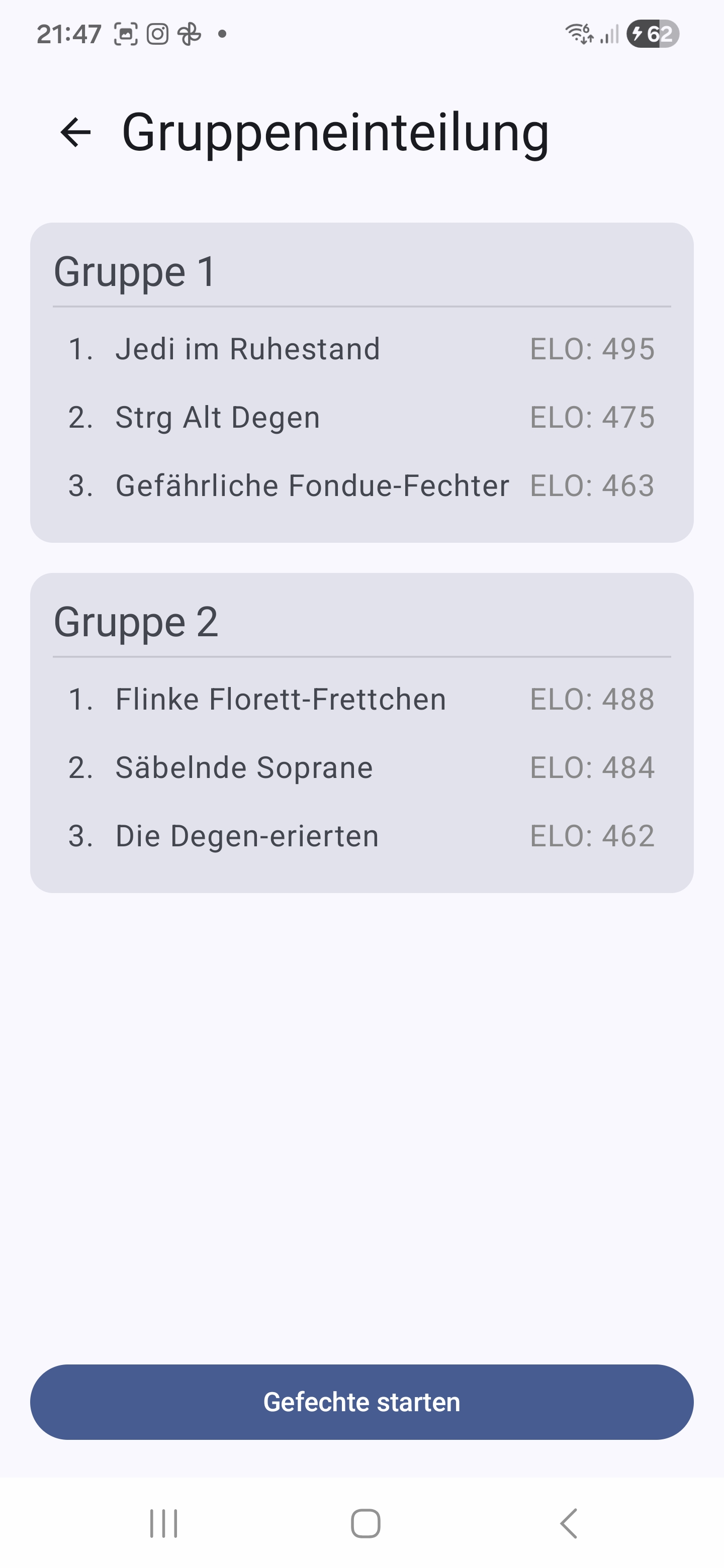
If the teams will fence in several parallel groups in the next step rather than in one big round-robin, this screen shows the automatically calculated distribution of teams across the chosen groups. The split follows the serpentine principle based on each team's average ELO — that way all groups end up similarly strong and not all top teams land in the same pool.
For each group the team name and the average ELO are shown. With "Start matches" you jump straight into the round tableaus — one tableau per group with all matches.
Mode selection
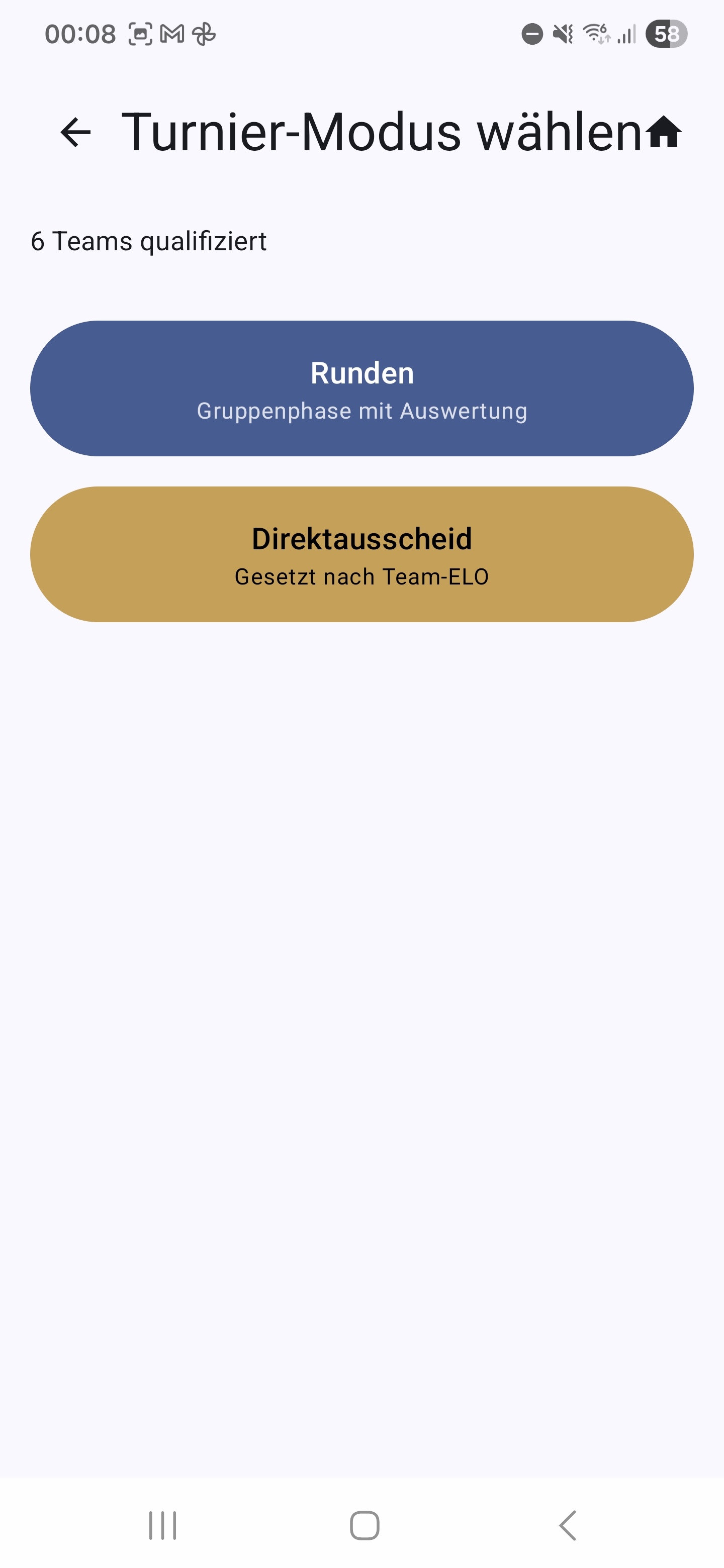
- Rounds — group phase with evaluation. In the next step you choose whether all teams compete in one big round-robin or are split into multiple parallel groups.
- Direct elimination — immediate knockout bracket without a pool round. The seeding is created automatically from the average ELO of the teams.
Direct elimination
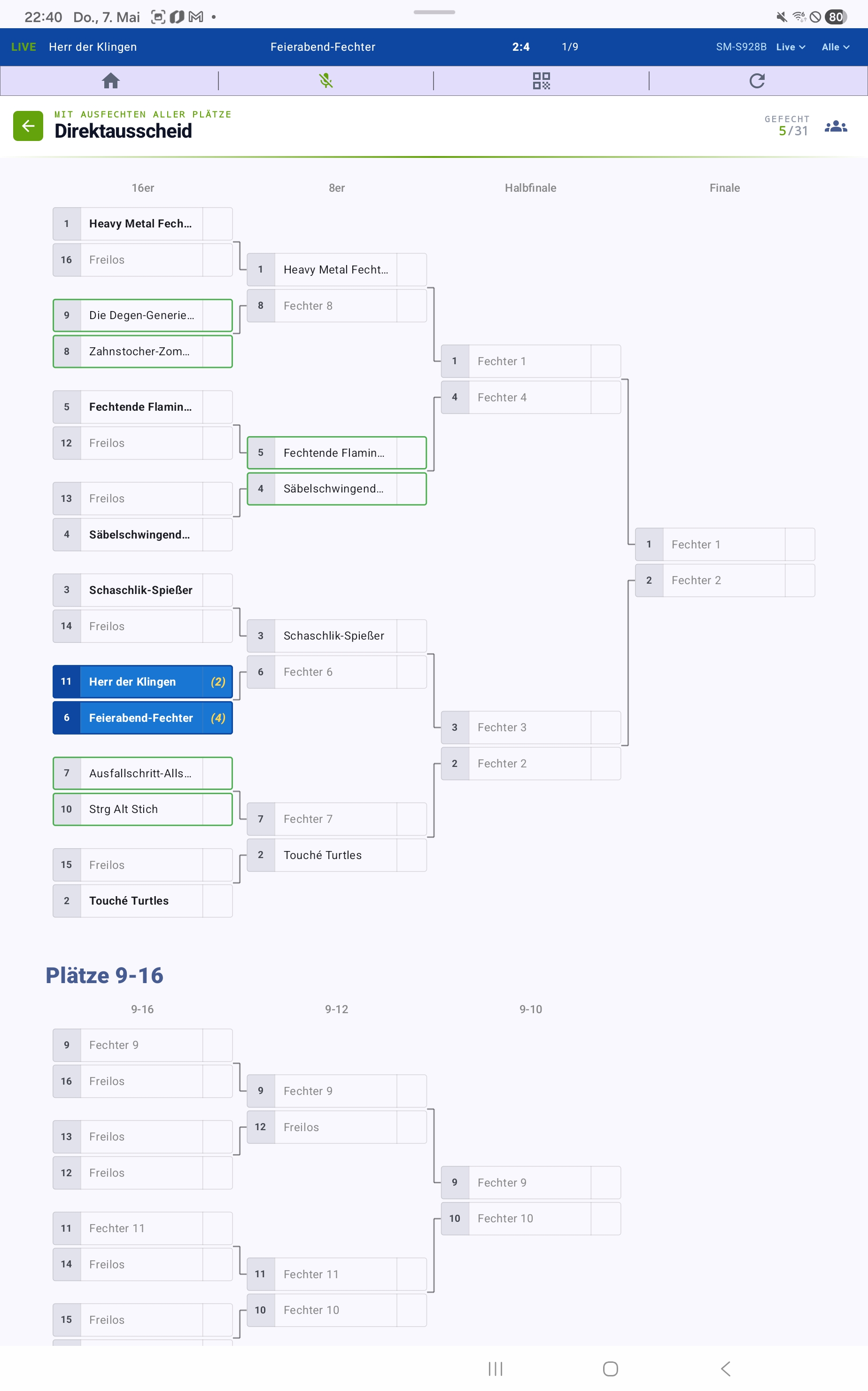
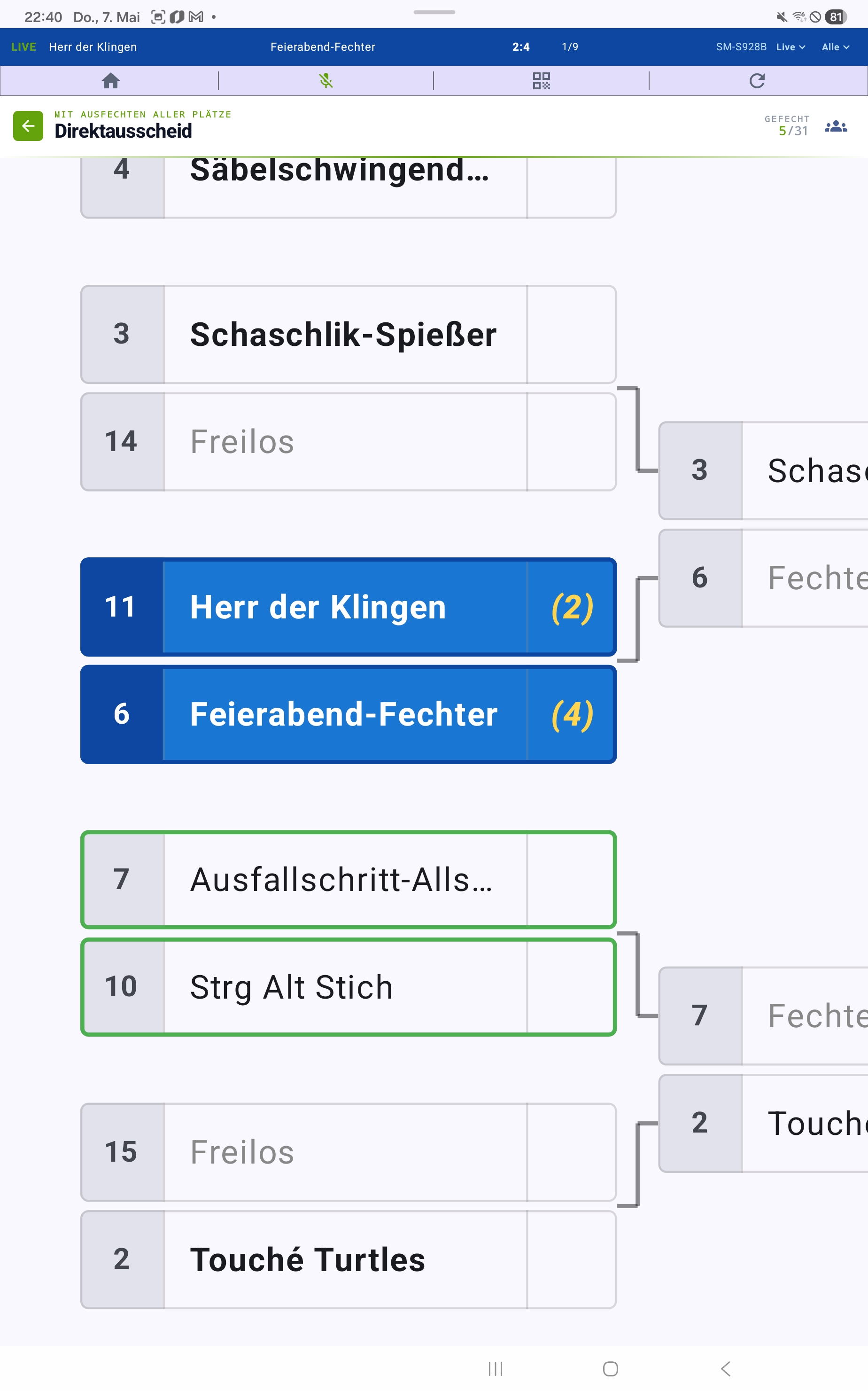
In DE mode the pool round is skipped entirely — the team seeding (average ELO) directly determines the knockout bracket. The screenshot shows the variant "With placement matches for all places", in which places 9–16 are also fenced out.
Unlike the singles direct elimination, team DE matches can be delegated to clients: every match consists of four (2v2) or nine (3v3) individual bouts and is therefore a sensible delegation unit. The match highlighted in blue in the overview shows the bout currently led by the client — the LIVE banner at the very top of the screen shows the score and the running bout (e.g. "2:4 · 1/9"). Other reserved or already-fenced matches are framed in green.
Team rounds
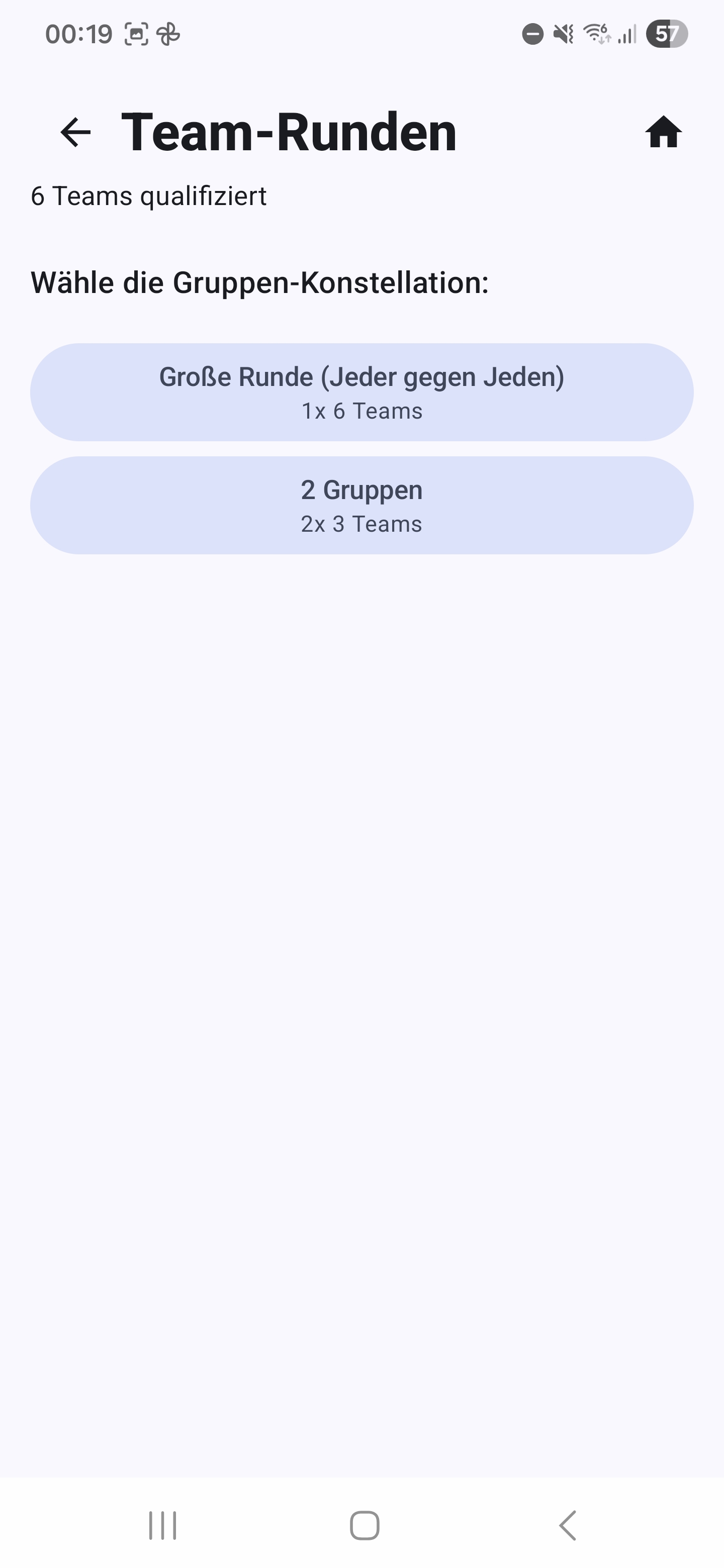
- One big round — every team faces every other team. Optionally a DE can follow.
- Multiple groups — the teams are split into 2 or more parallel groups. A DE is mandatory here in order to determine the overall winner fairly.
The distribution happens according to the serpentine principle, based on each team's average ELO.
Round tableaus
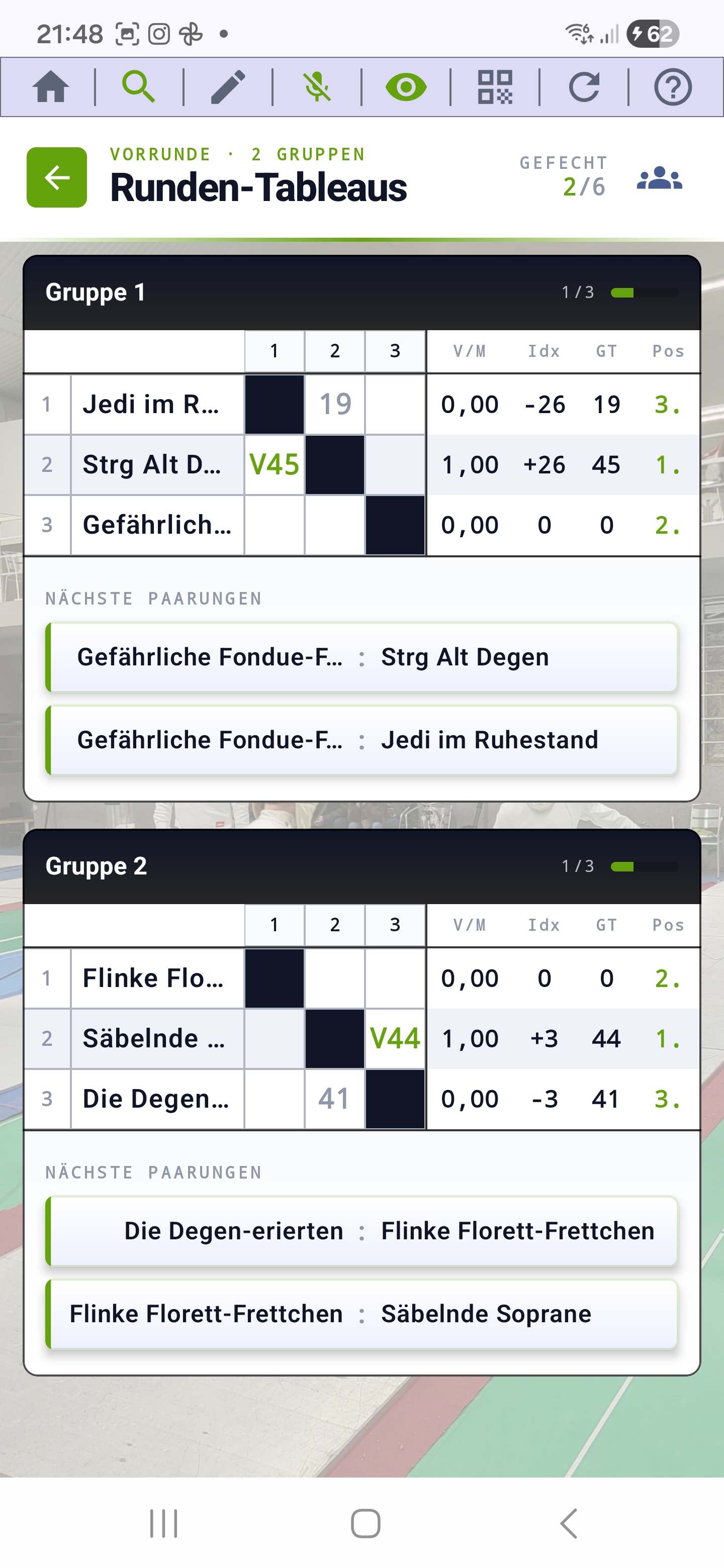
One matrix of all matches per group. To the right of each tableau there are four statistics columns:
- V/M — victories per match (Victory/Match)
- Idx — touch difference (indicator)
- GT — total touches given
- Pos — current position in the table
Directly below each tableau, the "Next pairings" block shows the next three open matches — at a glance you see what's coming up on the piste. With multiple groups, scroll down to the further tableaus.
For each group, the estimated end time of the round is also shown to the right of the group title (see ETA). The toolbar at the top contains the same functions as in the singles tableau (see Tableau toolbar).
View team composition
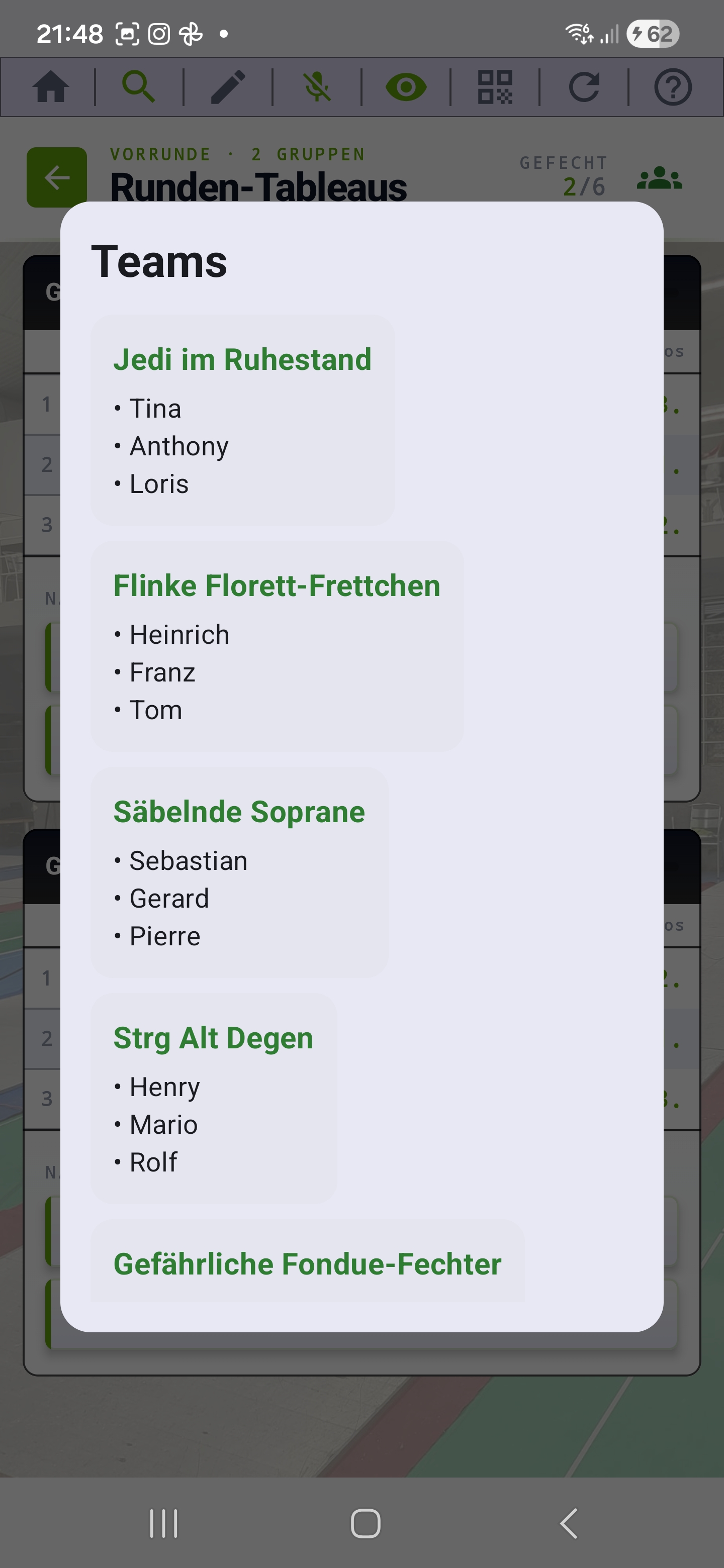
The people icon at the top right of the tableau view opens an overlay listing all teams and their fencers. Per team you see the team name and the fencer roster — handy for checking who is in which team without leaving the tableau. Tapping outside the overlay or on the background closes it again.
Delegate match to client
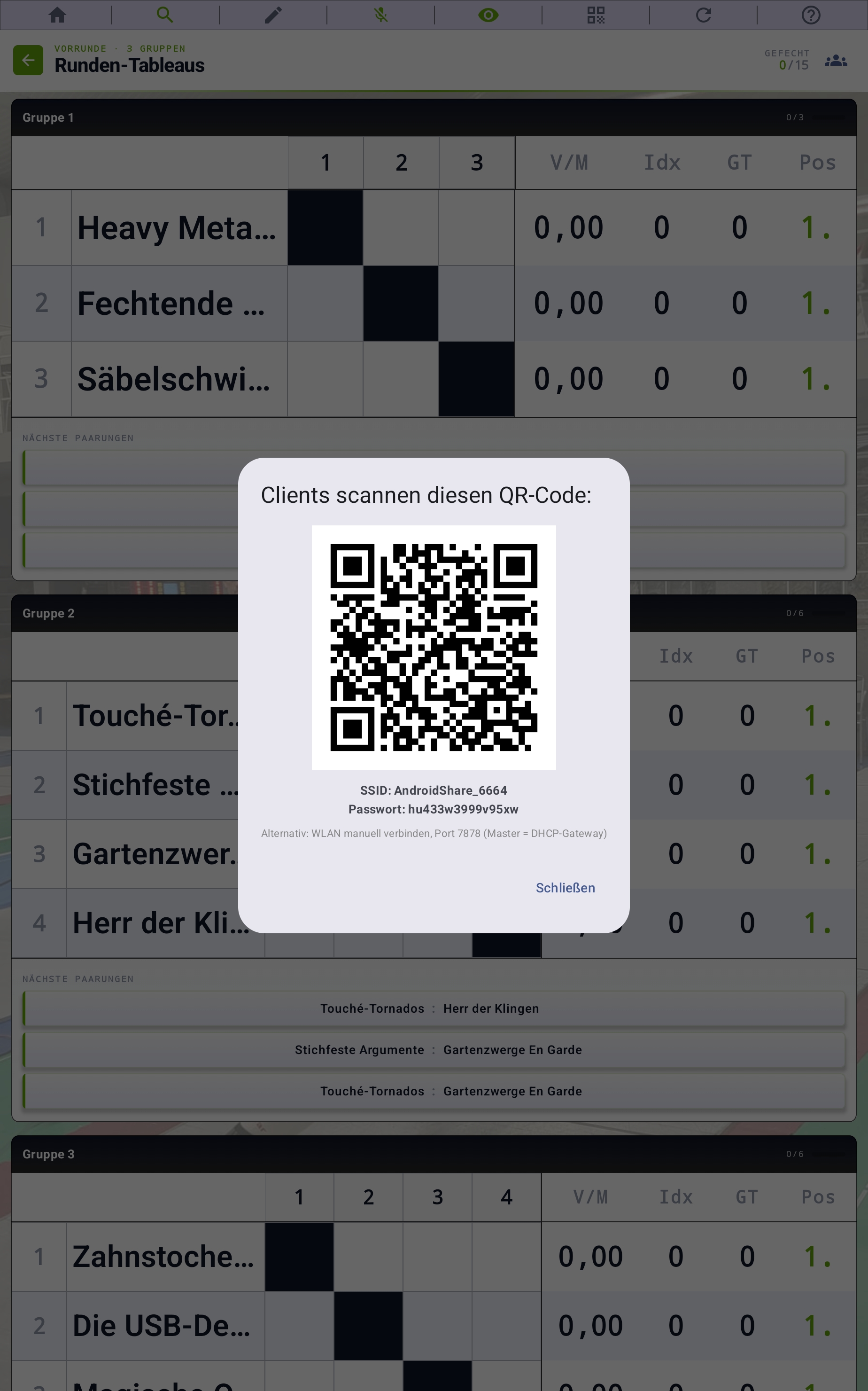
In the team tournament you can hand off individual matches to connected devices in Client mode at any time. As soon as a client is connected, a match can be transferred to it — no separate "multi-device mode" required.
Prerequisites on the master:
- In the settings menu under Connection, Wi-Fi or Bluetooth has been chosen.
- On the round tableaus, the blue banner appears at the top: "Wi-Fi master active · SSID: …" or "Bluetooth master active".
- At least one client has connected successfully.
Delegate a match:
- Long-press an open cell in a round tableau (or an entry from "Next pairings").
- Pick the client from the list — the match is marked as reserved on the master.
- On the client, the match appears immediately in its assignment list.
While the client fences, you see the live state on the master after every bout. Statistics columns and final position update as soon as the match is finished on the client. If the client fails, you can release the reservation on the master via long press and enter the bout yourself or reassign it.
Client takeover: lineup & order
Once the master has delegated a match, the client steps through four screens — from the assignment list, through the lineup of both teams, all the way to the live bouts.
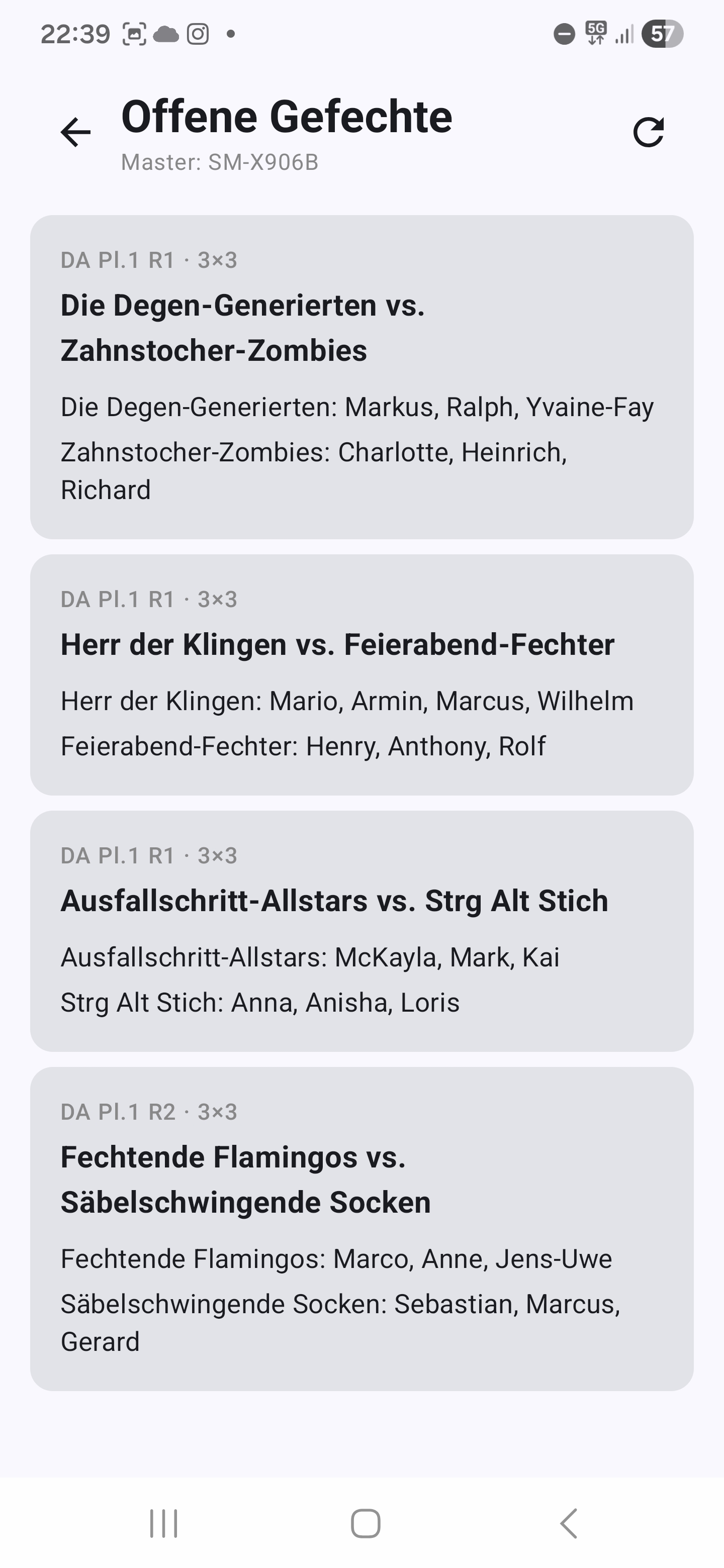
Tap a match in the assignment list — the client takes over the entire team comparison.
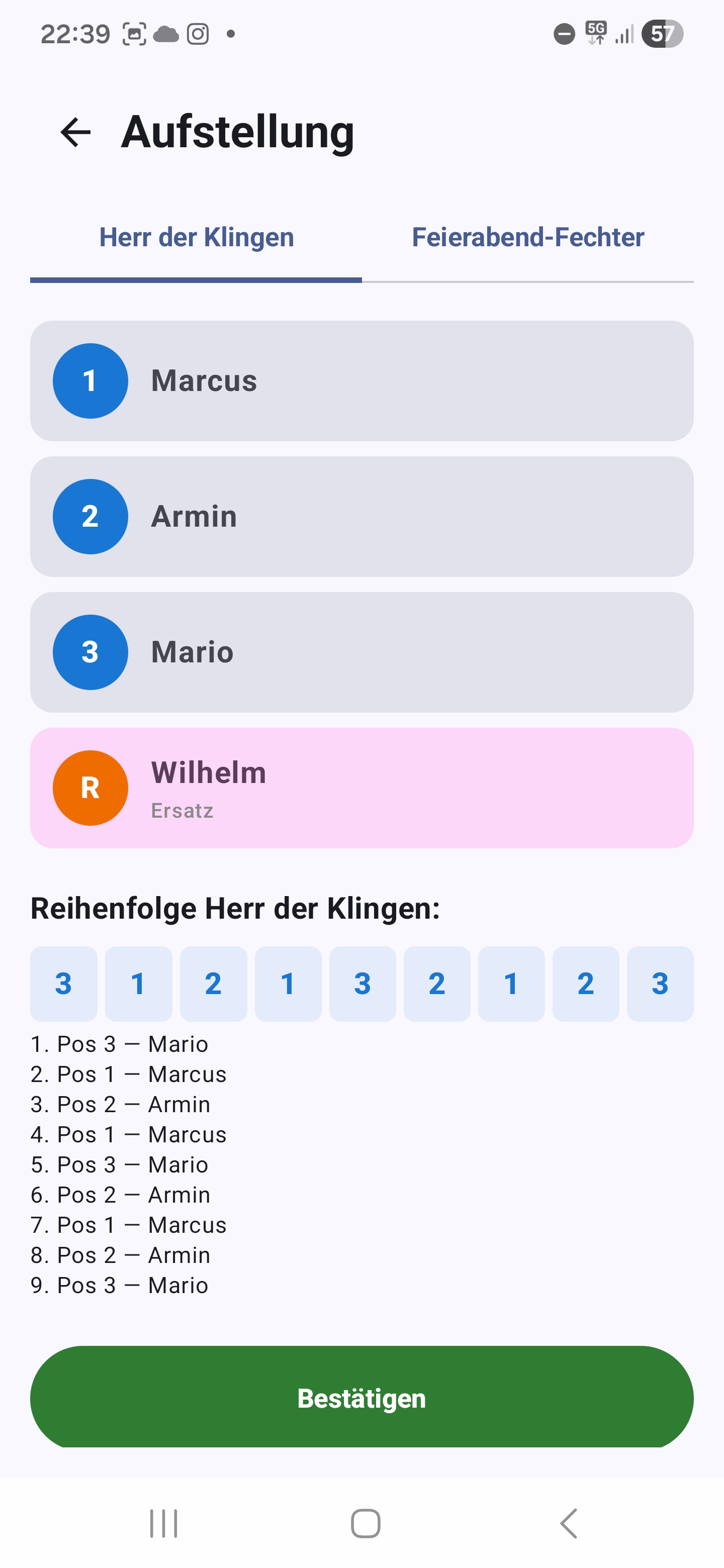
Assign position numbers (1, 2, 3) to the fencers, optionally mark one as substitute — the order of the nine or four bouts follows automatically.
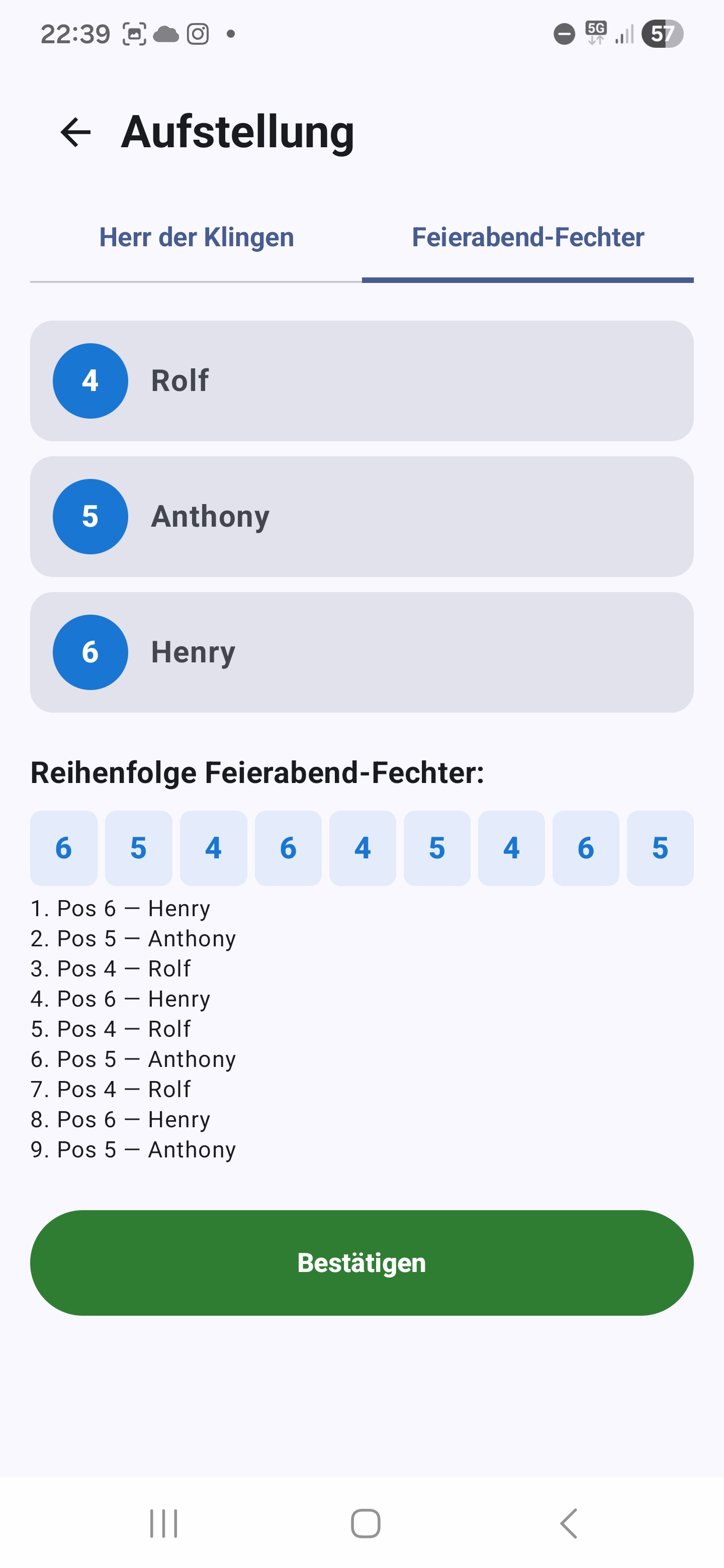
On the second tab, do the same for the opposing team — both lineups are accepted with Confirm.
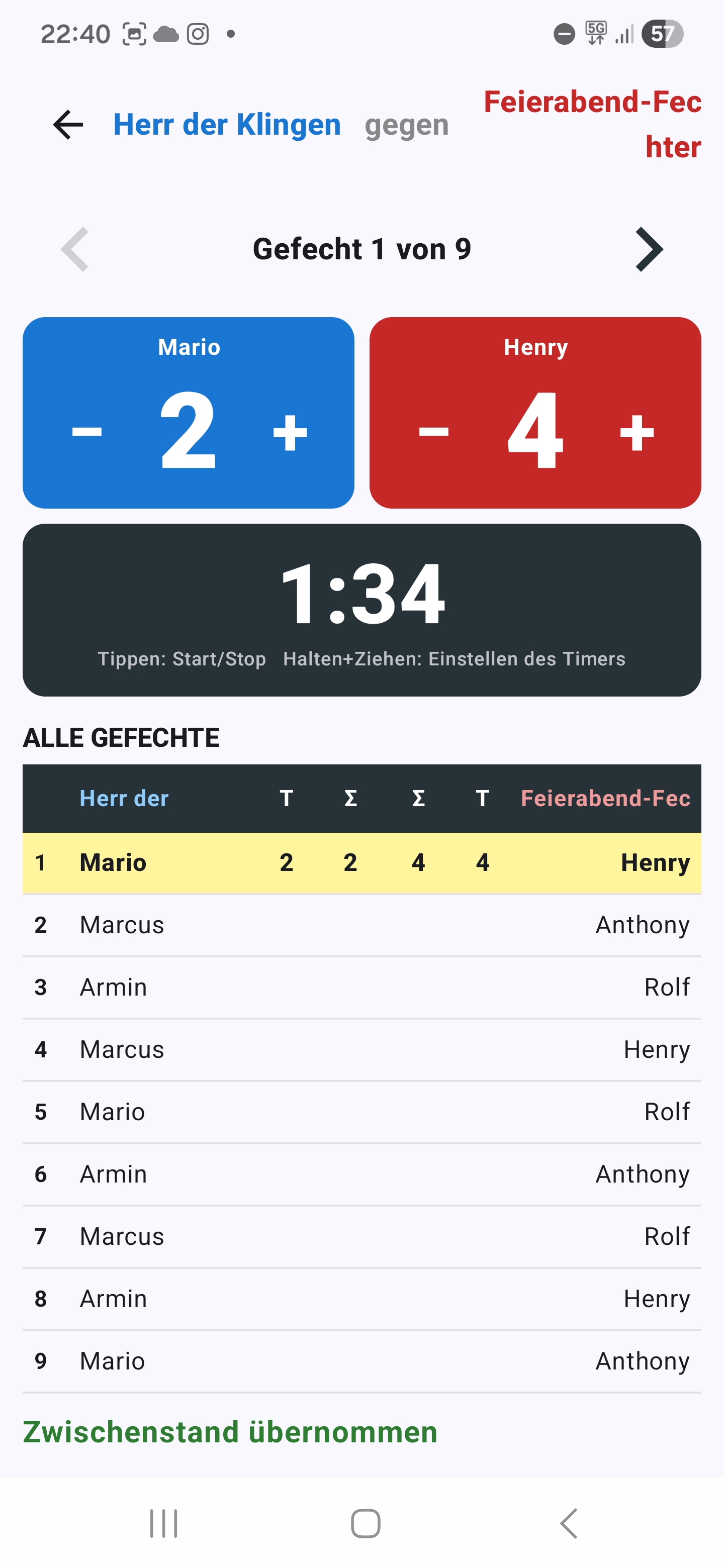
Enter the touch counts bout by bout — the master sees the score live after every bout (see Live bouts).
Match overview
For each match, all pairings are fenced cross-over:
- 4 bouts in 2v2 (each fencer against each opposing fencer)
- 9 bouts in 3v3
Live bouts
For each bout you see the two fencers, the current order, and you can enter the touch counts directly. The substitute fencer can be swapped in for an active fencer at any time during the match — practical for injuries, tactical changes or fatigue. You reach the substitution function via the team icon at the top.
Final result & PDF
The final overview shows the team ranking with win/loss balance and touch difference. Here you can save a PDF evaluation or share it directly — including all bouts per match.
Tableau features
You find these features on every tableau screen — whether singles pool, ranking pool or team round tableau.
Top icon bar
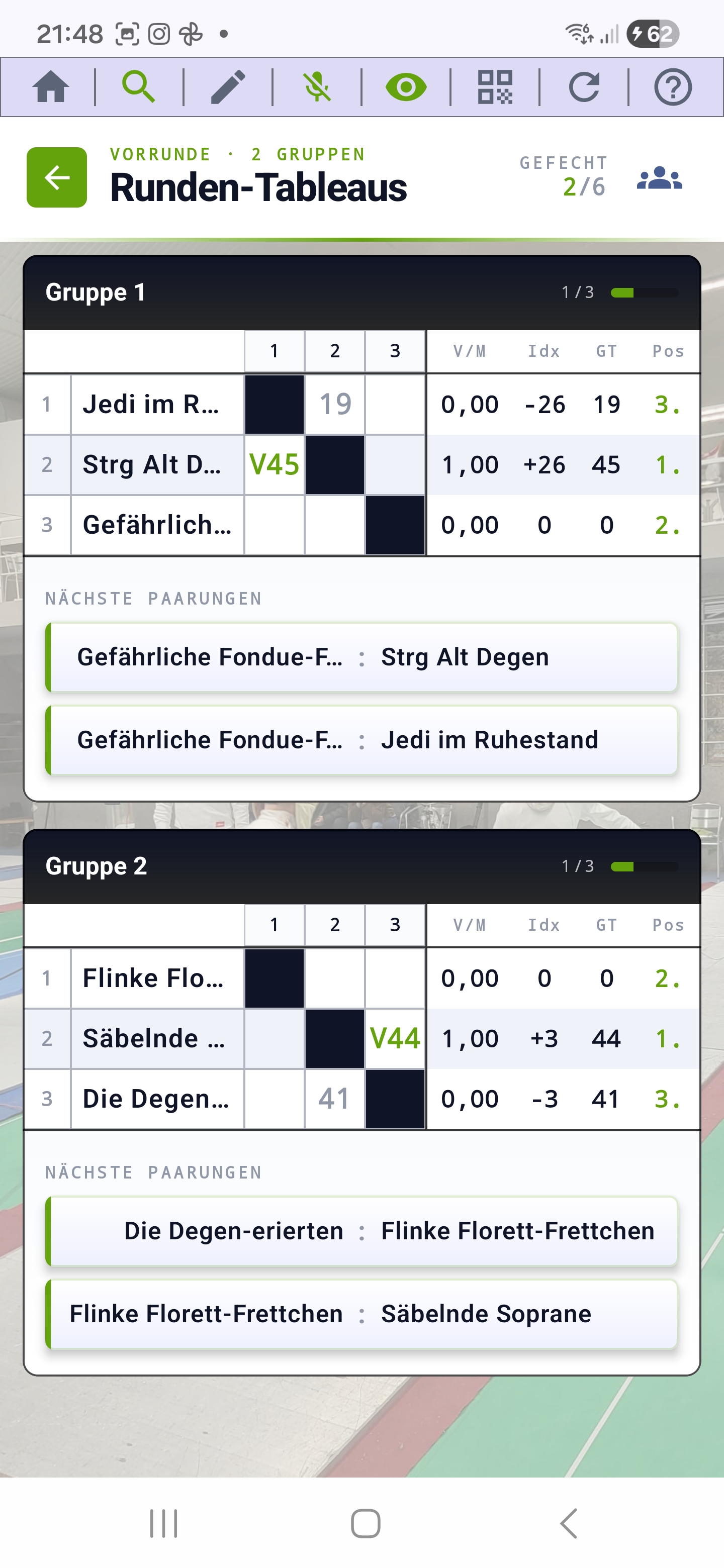
At the top edge of every tableau there is a slim icon bar with all the functions that are relevant for the running round. Which icons are visible depends on the context — for example the "Refresh" button is only visible in test mode.
- Main menu (house icon) — jumps back to the main menu. The current tournament state is saved automatically; you can come back exactly here at any time via the "Saved tournaments" list.
- Zoom (magnifier) — the magnifier has two modes:
- A short tap toggles auto-zoom on or off. With auto-zoom active, the app scales the tableau to fit the screen width — including the statistics columns, if those are shown.
- By holding and dragging horizontally you can set the zoom factor manually. As soon as you drag manually, auto-zoom is automatically disabled.
- Edit (pencil icon) — switches to edit mode. In edit mode, plus and minus icons appear, with which you can add or remove fencers in the running round (see Edit mode).
- Voice input (microphone) — push-to-talk entry of bout results. With a slash in idle state, without a slash when held. Speak, then release — the app enters the result into the matching bout (see Voice input).
- Intermediate standing (eye icon) — toggles the statistics columns (victory/match rate, indicator, touches given, position) and the position marker next to each fencer on/off. When active, the icon glows in color; when inactive it appears crossed out. This keeps the overview clean when you only care about the matchups.
- QR code — shows the QR code with which clients connect to the master. Appears only in tableaus in which assignments can actually be delegated to clients — that is, in pool rounds of the singles, ranking and team tournaments and on the team round tableaus. In the singles direct elimination the icon is not visible, because a DE bracket runs sequentially and doesn't allow parallel piste delegation (see QR code for clients).
- Test data (refresh icon) — only visible in test mode. Fills all open bouts of the round with random values — practical to play through a tournament cycle in seconds without affecting ELO values.
- Help (?) icon at the far right — long-pressing it shows tooltips for all the other icons (see Help mode via long press).
Help mode via long press
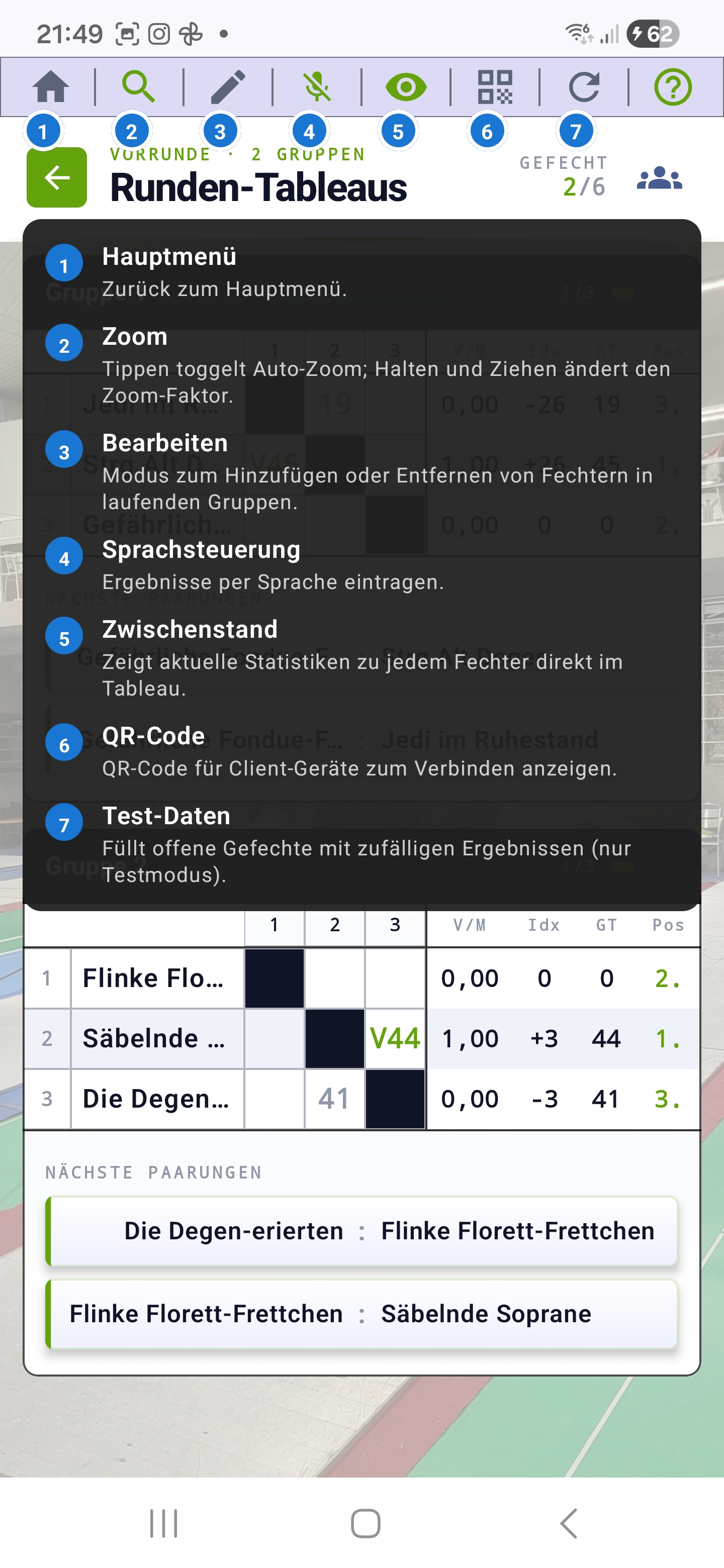
Long-press the help icon (?) at the right of the toolbar: a small blue number appears above every other icon, and below them a centered list with numbered explanations is shown — that way you know at a glance which button does what. Releasing immediately hides the overlay again. Also works in fencer management, the ranking and the history.
Auto-zoom & manual zoom
The auto-zoom automatically scales the tableau to fit the display width — including the statistics columns if active. Tap the magnifier icon to toggle auto-zoom on or off. Holding + horizontal dragging on the magnifier icon changes the zoom factor manually.
Remaining time & bout counter
Each group shows two progress indicators in its header — directly to the right of "Group N":
- Estimated end time — e.g. "Finish approx. 17:42". The app calculates it continuously from the average duration of the last up to four finished bouts and the number of still-open bouts. After every entered result, the value is recalculated automatically.
- Bout counter — e.g. 5/10. Shows how many bouts of the group are already finished and how many in total are pending. Forfeit-marked bouts are counted neither as "done" nor as "open" — when a fencer withdraws, the total number drops accordingly.
Tap-toggle on the end time: When you tap the wall-clock time, the display switches inline to a live running countdown — e.g. "Approx. 1h 10 min remaining" or "Approx. 12 min remaining". The countdown ticks every second. Tapping again switches back to the wall-clock time. Each group has its own calculation — the toggle only affects that single group, not the others.
Overall summary at the top: In the title block at the very top of the screen, the app additionally shows a cross-round bout counter (all groups together, e.g. "BOUT 17/40") and an overall ETA. The overall ETA is based on the group that is expected to finish latest — the realistic moment to transition to the next phase. The overall ETA can also be tapped and then shows the countdown.
QR code for clients
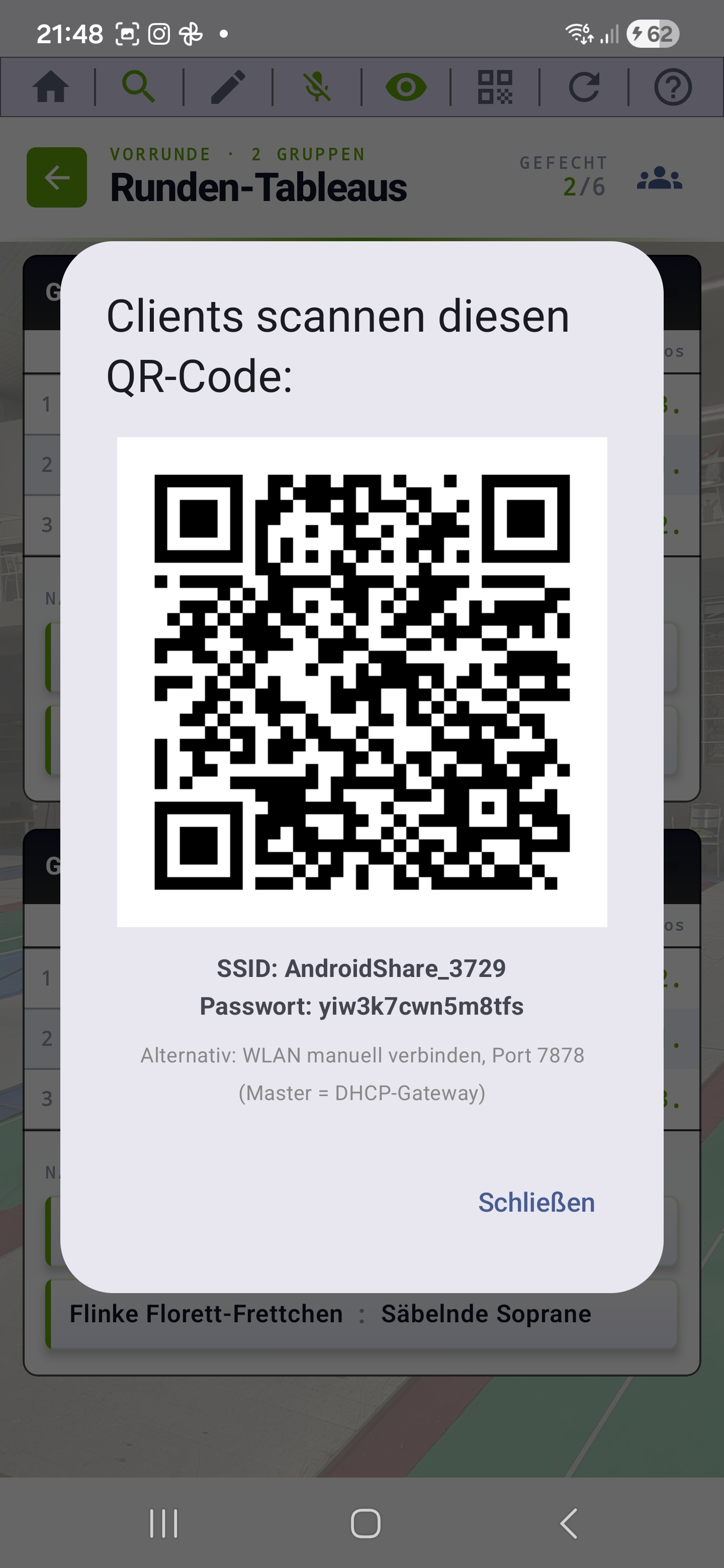
The QR icon is only visible in tableaus where assignments can be sensibly delegated to clients — that is, pool rounds of the singles, ranking and team tournaments as well as the team round tableaus. In the singles direct elimination, no QR icon appears, because DE brackets run sequentially and parallel pistes can't be delegated.
What a client can take over:
- A complete pool group in singles, ranking or team pool rounds — the client enters all bouts of this group; the master sees the state live.
- A single team match in a team tournament (i.e. the complete team comparison with all 4 or 9 bouts).
As soon as you have enabled Wi-Fi or Bluetooth in the settings menu under Connection, an additional blue banner with the status appears at the top of the tableau — e.g. "Wi-Fi master active · SSID: …" or "Bluetooth master active". When you tap the banner or the QR icon in the toolbar, the QR code expands.
The QR code contains all data that a client needs to connect — for Wi-Fi, the SSID with password as well as the IP and port of the master hotspot; for Bluetooth, the device identification. Other tablets or smartphones in Client mode scan the code and are connected without further input — no Wi-Fi list, no pairing.
The banner additionally shows the number of active client connections and turns yellow/red when a connection drops. As soon as at least one client is connected, you can delegate a pool group or team match to it via long-press on the cell or entry (see Delegate match to client).
Edit mode
When you tap the pencil icon, you switch to edit mode. As long as it's active, the pencil glows in color. In this mode you can:
- Correct already entered results — including those reported by a client.
- Add or remove fencers from the pool round after it has started.
- In the team tableau, see all matches of a round — including the already-fenced ones with their result (in normal mode the "Next pairings" list only shows the next three open ones).
Tapping the pencil again confirms the changes and returns to normal mode.
Add / remove fencers in the round
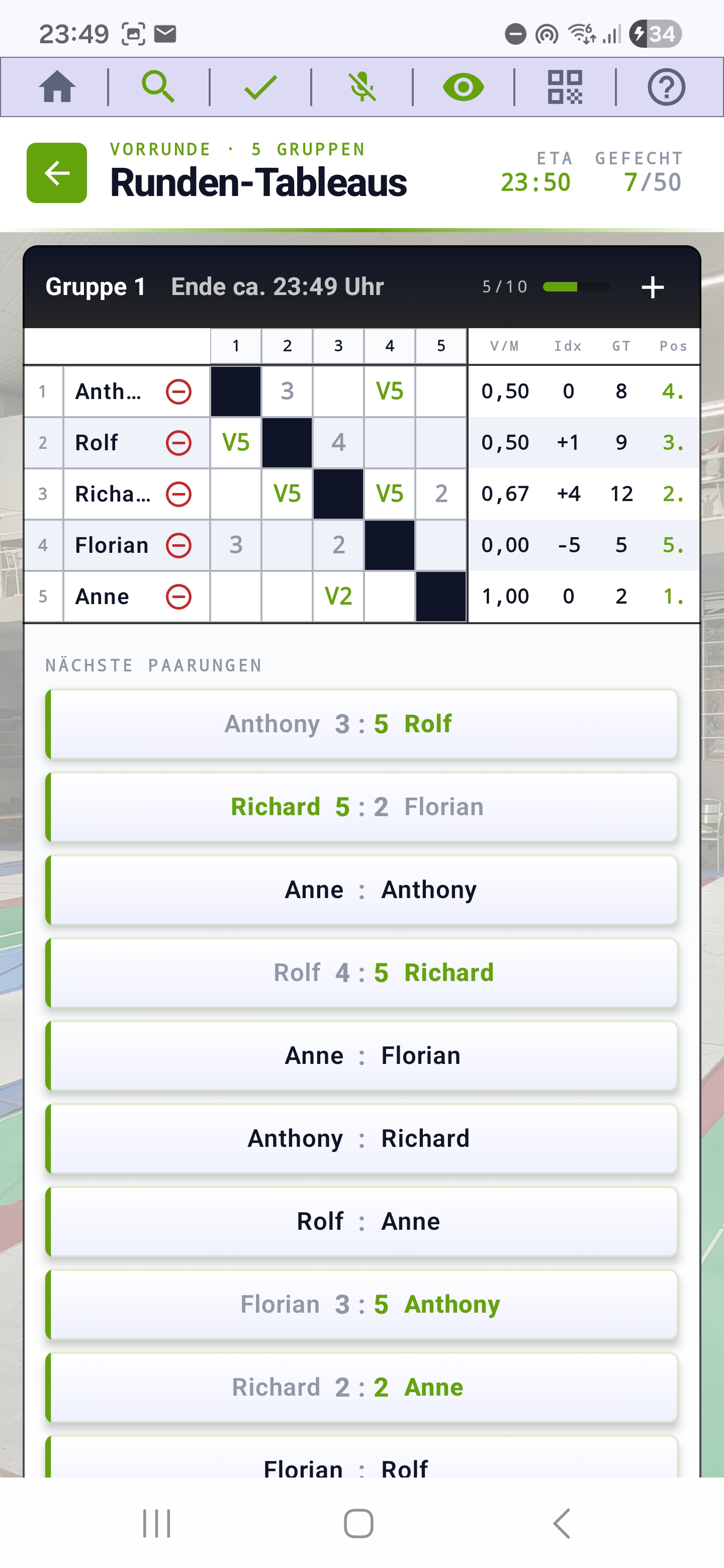
Sometimes someone joins only after the pool has started — or a fencer has to drop out because of an injury or can't continue. In edit mode, both work without restarting the round.
Add a fencer:
- Tap the pencil icon in the toolbar — edit mode becomes active.
- In each pool header row, a plus icon appears. Tap it in the desired pool.
- A selection dialog opens with all fencers from your global pool who aren't yet in the tournament. Via the search at the top you filter the list by name or club.
- Tap an entry to assign them to the pool — or via "Create new" register an entirely new fencer.
- The app automatically adds all bouts of this new fencer against the existing pool members, so that the pool size matches the FIE order again.
Remove a fencer:
- In edit mode, a red minus icon appears in every fencer row.
- Tap it. For a fencer without any already-completed bouts, they are removed without further prompting.
- For a fencer with already-completed bouts, a dialog appears with two options:
- Remove completely from the round — all of their bouts (including the already-fenced ones) are deleted. The other fencers keep only their results against the remaining members.
- Mark remaining bouts as forfeit — already-fenced results stay counted; all still-open bouts of this fencer are dropped. That way no pseudo-defeats are created for the opponents (see Early withdrawal).
Once you confirm the edit by tapping the pencil again, the change is applied. The statistics columns and the bout counter update automatically. With connected clients, roster changes are transferred live — the client referee sees the adjusted pool tableau without delay; nobody has to "refresh".
Early withdrawal (forfeit)
When a fencer can't continue in the middle of a pool (injury, withdrawal), you mark them via the minus icon in edit mode using the "Mark remaining bouts as forfeit" option. Effect:
- All still-open bouts of the fencer are dropped — they count as neither a win nor a loss for them or their opponents.
- Already-fenced bouts remain in the statistics.
- The pool ranking is recalculated, without pseudo-results.
- The bout counter in the header (see Remaining time & counter) reduces its total accordingly.
Result entry (wheel picker)
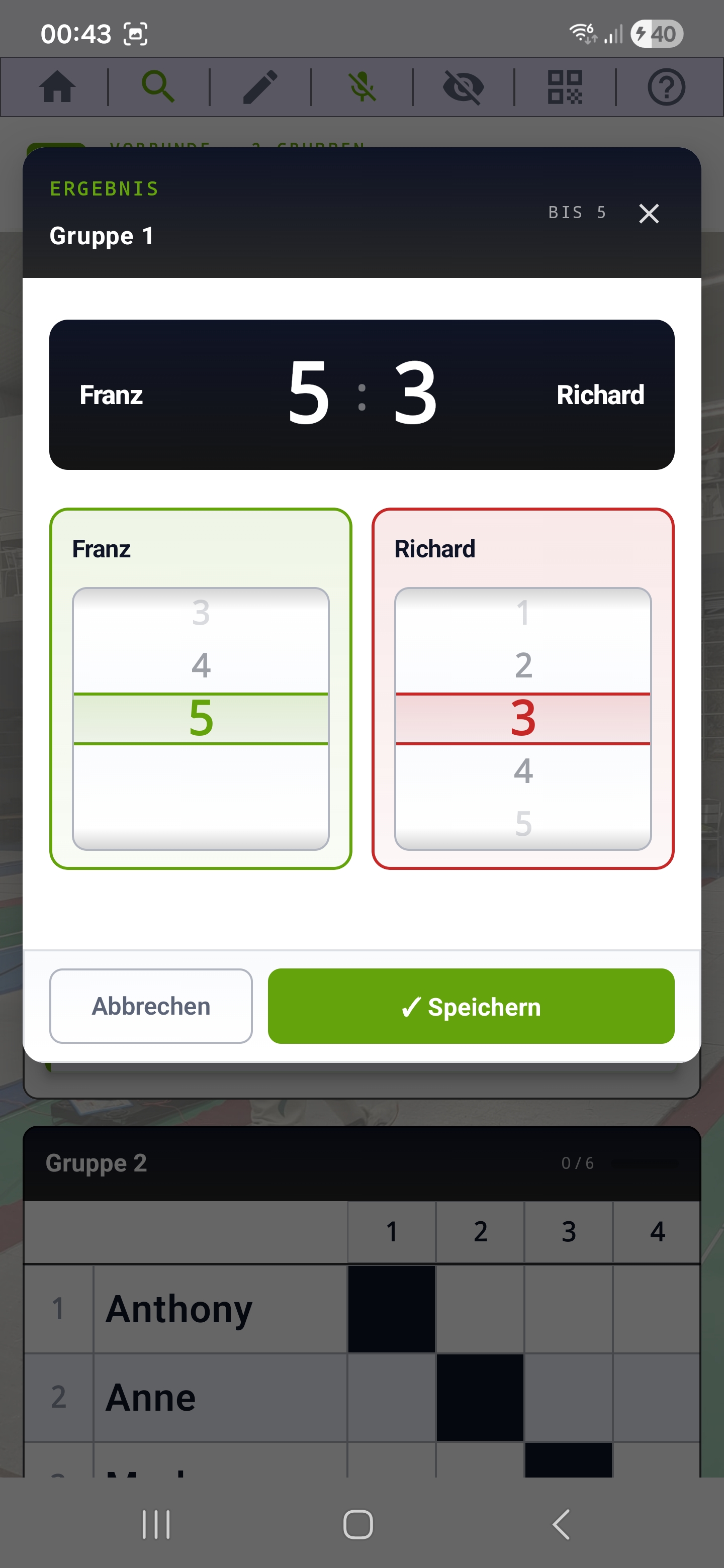
Bout results are entered in the app via a modal dialog with two 3D wheel pickers — one per fencer. Here's how it works:
- Open a bout: Tap the cell of the desired matchup in the pool tableau — or, in the "Next pairings" block, directly on the row. In the direct-elimination or team-bout screen you tap the respective slot. In all cases the entry dialog opens.
- Spin the touch counts: Per fencer you see a wheel with the values 0–15. Swipe the wheel up or down with your thumb until the right number is in the center slot. While swiping, the tablet clicks softly — you feel every field as haptic feedback.
- Detect the winner: As soon as the numbers differ, the app automatically frames the winner in green and the loser in red. You don't need to tap anything extra.
- On a tie: When both touch counts are equal (e.g. 5:5 or even 0:0), an additional row appears in which you explicitly select who won. That way V0:0 results (a win without touches, for example after several mutual cards) can also be cleanly recorded.
- Save: With the green button at the bottom edge you confirm the result. The tableau updates immediately, ELO and ranking values are recalculated in the background, and the bout counter in the header advances by one. With connected clients, the result automatically goes live to all devices.
- Correct: You can tap the same cell again at any time to change the result. After confirming the correction, ELO and statistics are cleanly recalculated (in edit mode this also works for bouts reported by a client).
As an alternative to manual entry, you can enter results by voice — see Voice input.
Voice input
Enter results hands-free in the middle of a bout — voice input saves a lot of time on the piste. Works in pool tableaus, DE brackets and in the round tableaus of a team tournament.
Activation & usage
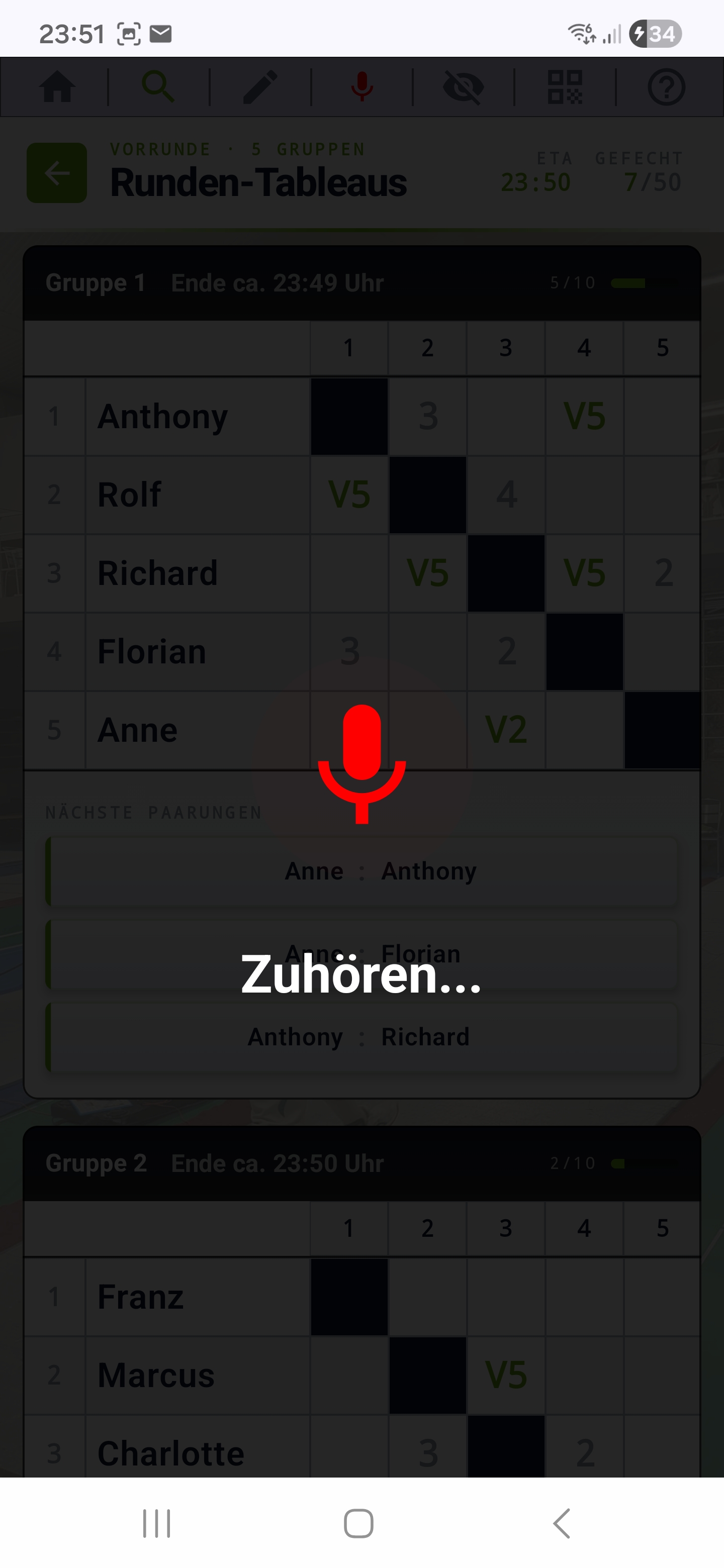
On every tableau and knockout-bracket screen you find the microphone icon in the icon bar. In idle state it's shown with a slash; when active, it appears without the slash.
The operation is "push-to-talk":
- Long-press the microphone icon.
- Speak the result: "Müller beats Schmidt five three".
- Release — the app analyzes what you said and enters the result into the matching bout.
Sample commands
- "Müller beats Schmidt five three"
- "Schmidt loses to Müller three to five"
- "Maxe vs. Lukas, five one" (with nicknames)
- "Pool two: Maier beats Becker five to two" (pool hint with multiple parallel pools)
Multiple bouts in one go
You can speak several results in one recording — the AI separates the sentences and enters each result into the matching bout. Practical when you want to clear several finished bouts in one sweep.
With AI assistance
With AI assistance enabled, the app also recognizes inaccurate pronunciations, abbreviated names or nicknames. Without an AI key, voice input also works — it then uses the device's own speech recognizer and is more robust with clear, complete names.
Languages & speech pack
Voice input follows the app language (see Language). If your device is offline and the appropriate speech pack isn't installed, a dialog will appear on the first voice attempt, in which you can choose an alternative recognition language.
Client mode
Master & client
Multiple devices, one tournament: in the multi-device variant, one tablet acts as the master (runs the tournament, holds the state) — additional tablets or smartphones connect in client mode and take over individual tasks of the tournament. This works without internet and without a venue Wi-Fi: the master device either opens a local Wi-Fi hotspot or uses direct Bluetooth connections.
What a client can take over:
- In pool rounds (singles, ranking and team tournaments): a complete group / piste — the client enters all bouts of this group, the master sees the state live.
- In team tournaments: a single team match (i.e. all matchups between two teams, four bouts in 2v2, nine bouts in 3v3).
Multiple clients can take over their own groups or team matches in parallel — that way several pistes can be served at the same time.
Step-by-step: Connect & take over a group
From opening client mode to running the pool tableau takes four screens. Example: singles tournament pool round, connection over Wi-Fi.
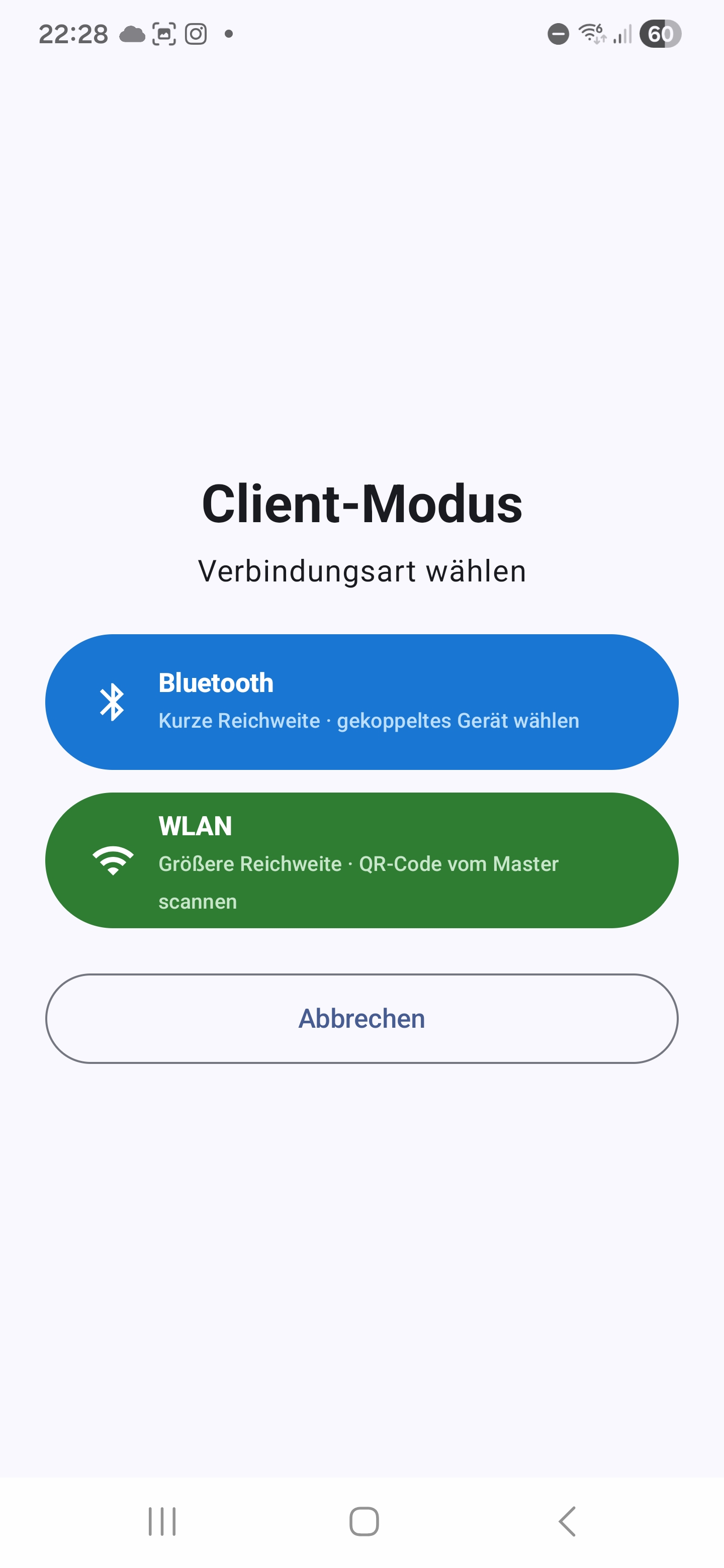
Tap Client mode in the main menu and pick the connection type.
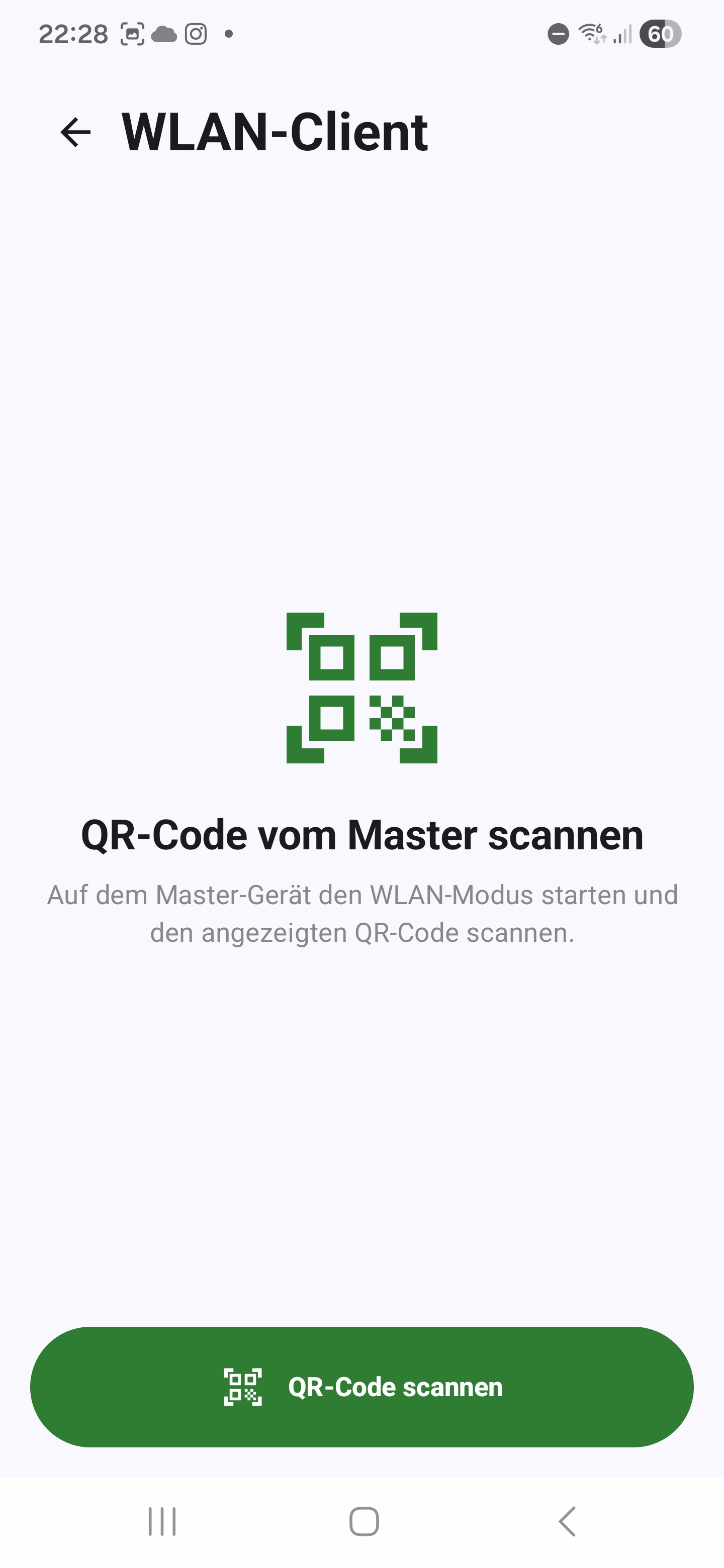
Scan the QR code shown by the master — the connection is established automatically.
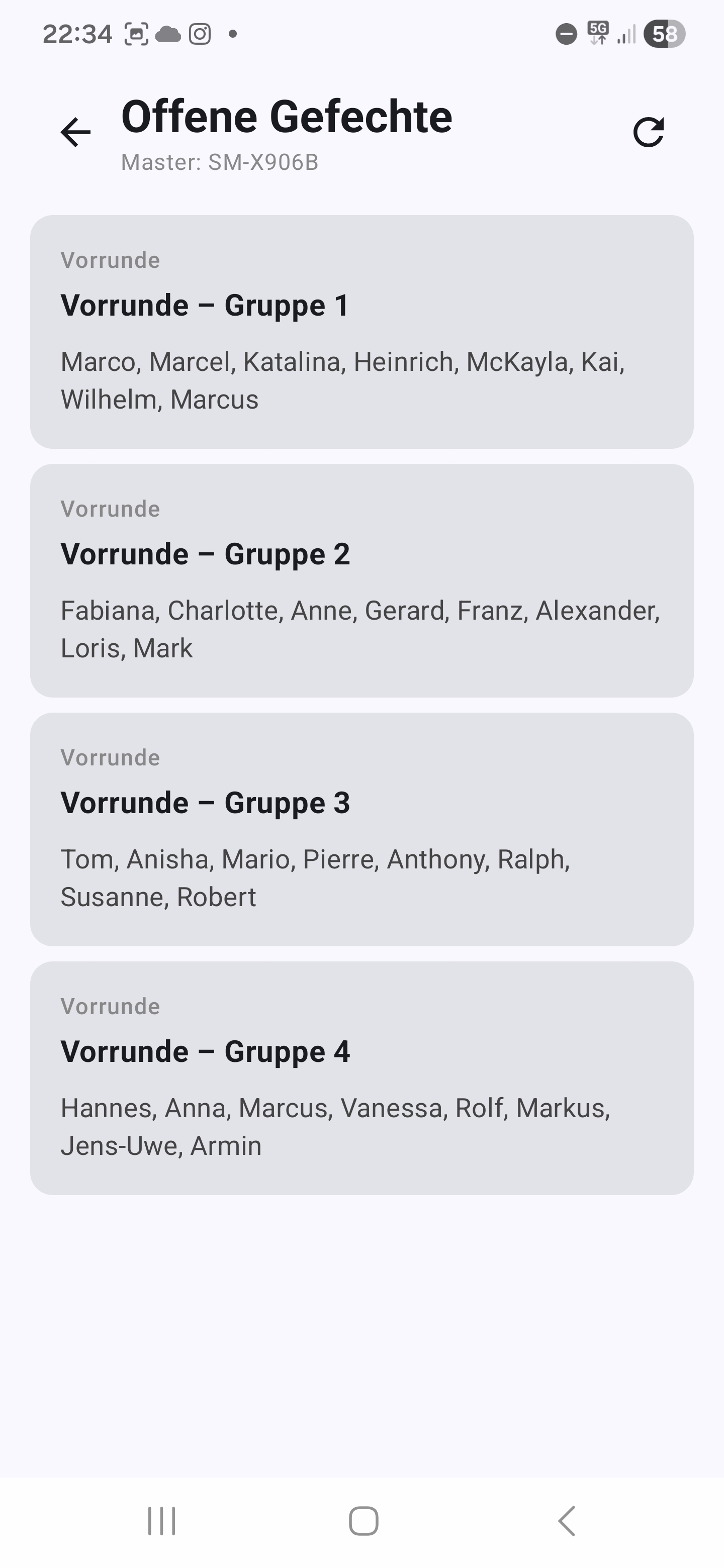
Tap one of the open groups in the list to take it over.
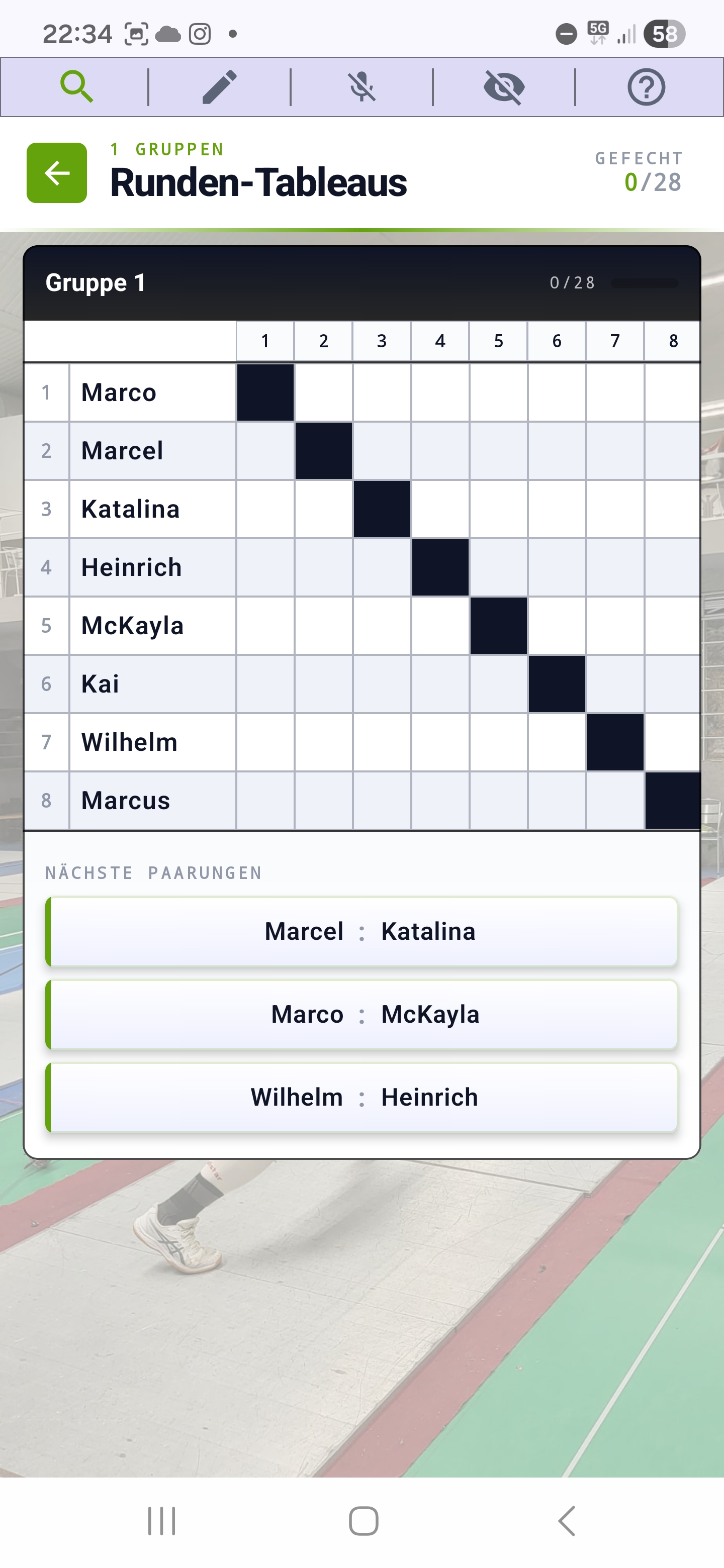
The client sees the full pool tableau and enters the bouts — the master sees everything live.
Connect to master
In the main menu, choose CLIENT MODE. The QR scanner opens automatically. Hold it onto the QR code shown by the master device:
- For Wi-Fi: SSID + password of the master hotspot, IP and port
- For Bluetooth: device identification of the master
After a successful scan, the app builds the connection automatically — no manual Wi-Fi selection or pairing required.
Take over a pool group or team match
Once the connection is up, the client sees the list of assignments offered by the master:
- Pool groups (in singles, ranking or team pool rounds) — when tapped, the client takes over the entire group and sees the full pool tableau, identical to the master.
- Team matches (in team tournaments) — when tapped, the client takes over a single team comparison with all of its cross-over bouts.
While an assignment is held by a client, it is marked as reserved on the master (clearly visible status icon with the device name). Other clients won't see the assignment in their list during this time. When the assignment is finished, the client releases it again automatically and the final result appears live on the master.
Enter touch counts
Once the client has taken over an assignment, they enter the touch counts per bout — the operation and screen are identical to the master (same wheel picker, same tableau layout). The master sees every bout state live as soon as it's saved.
Changes that the master makes to the roster (add or remove fencers, early withdrawal, substitution) are transferred to the client in real time. That way the client always stays at the same state as the master.
Connection status
At the top of the screen, a status bar shows the current connection state: connected, reconnecting or disconnected. On connection drops, the app automatically tries to reconnect. Inputs during an outage are buffered and automatically transferred to the master upon reconnection — no data loss.